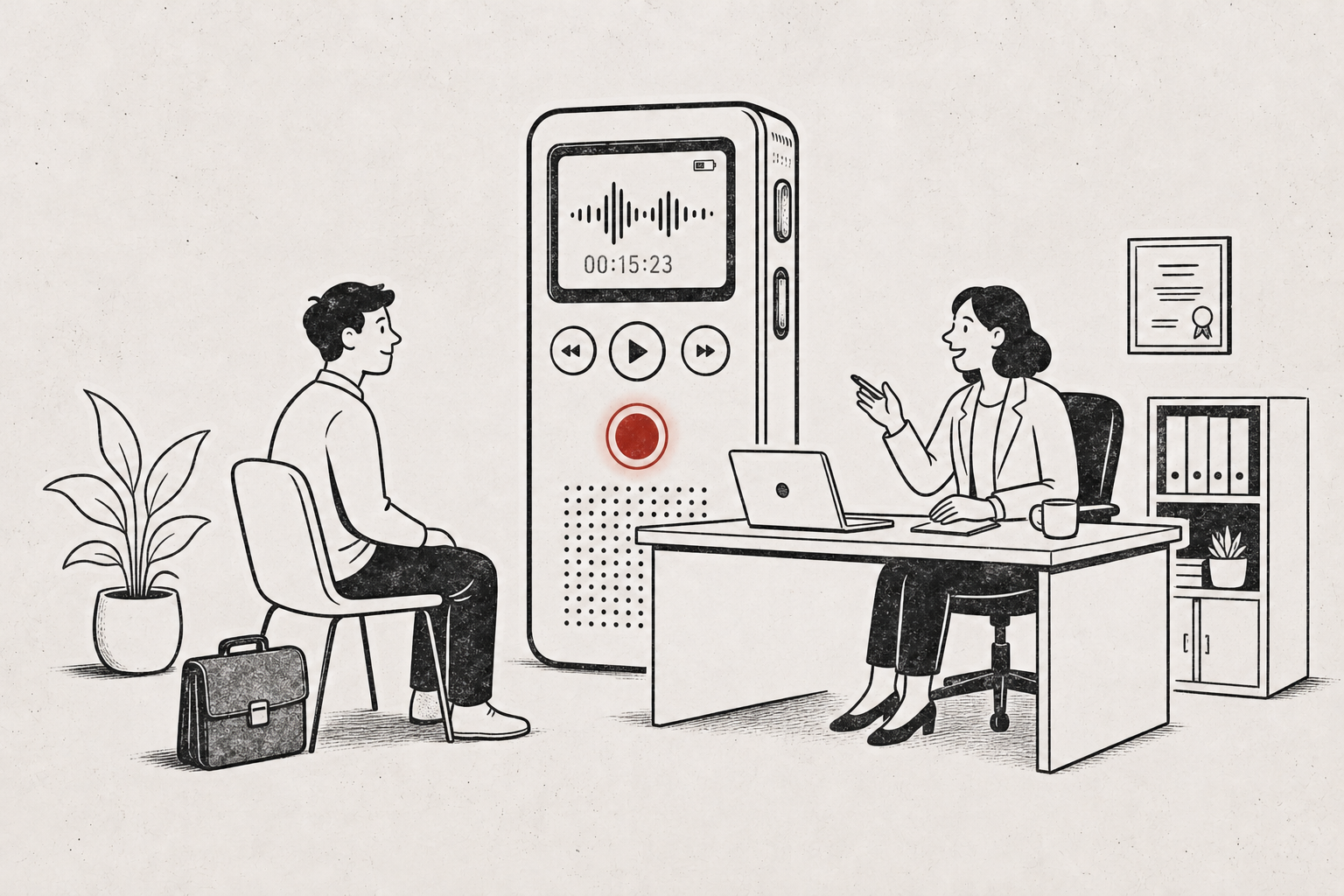
To transcribe sales calls for coaching, export the recording from your meeting platform, upload the audio or video file to a transcription tool that labels speakers automatically, rename the generic speaker labels to the rep’s and prospect’s actual names, then read the transcript alongside the AI summary to see who said what and how much. The speaker labels are the part that matters for coaching — without them you get a wall of text that tells you nothing about talk ratio, who asked the discovery questions, or whether the rep answered the pricing objection or talked past it. Once the transcript is labeled, you have two outputs from one upload: a coaching artifact (the full transcript, with the specific moments you want to review marked) and a CRM artifact (a short summary and next steps exported to Word or PDF, or pasted into the opportunity record). The whole loop takes a few minutes per call. For a team doing twenty calls a week, batching uploads and reusing a saved vocabulary list of product names keeps it from becoming anyone’s full-time job.
Step 1: Get the recording out of your meeting platform
Zoom, Google Meet, Teams, and dialer tools all produce a recording file — usually MP4 video or M4A audio. You don’t need to convert anything. Listently accepts MP3, WAV, M4A, FLAC, OGG, MP4, MOV, and MKV directly, so whatever your platform spits out is almost certainly usable as-is.
If your recordings land in Google Drive automatically (which is the default for Google Meet), you can skip the download step entirely by pasting the Drive share link — see the Google Drive import workflow for how that works. For Zoom specifically, there’s a step-by-step walkthrough here.
Upload the audio-only file when you have the choice — it’s smaller, uploads faster, and transcription accuracy depends on the audio track either way.
One thing worth settling before you build any of this into a team process: recording-consent rules vary by jurisdiction, and some US states require all parties to consent, not just one. Check what applies to where your reps and your prospects are, and make the disclosure part of the call opening rather than something legal flags six months later.
Step 2: Rename speaker labels before you do anything else
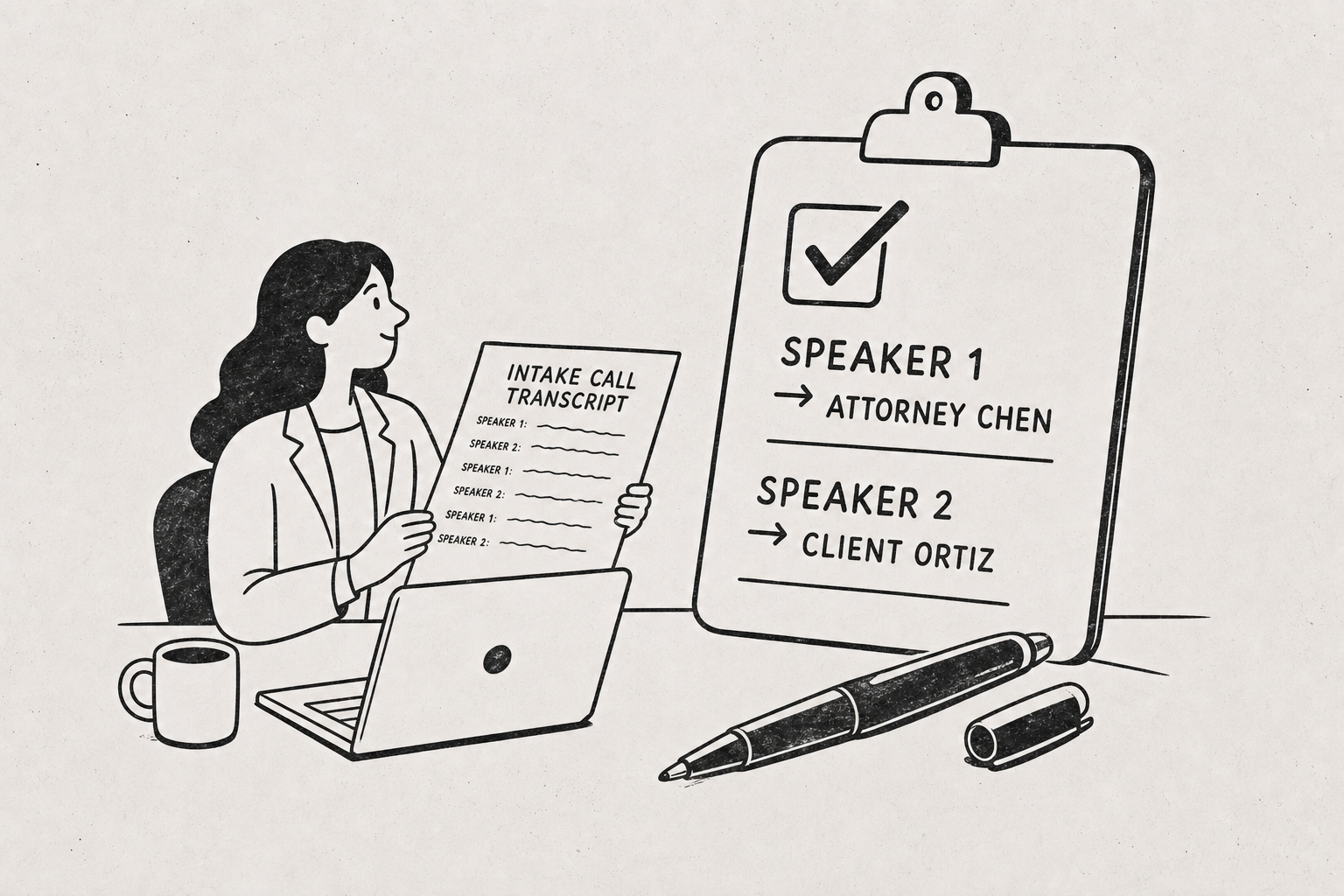
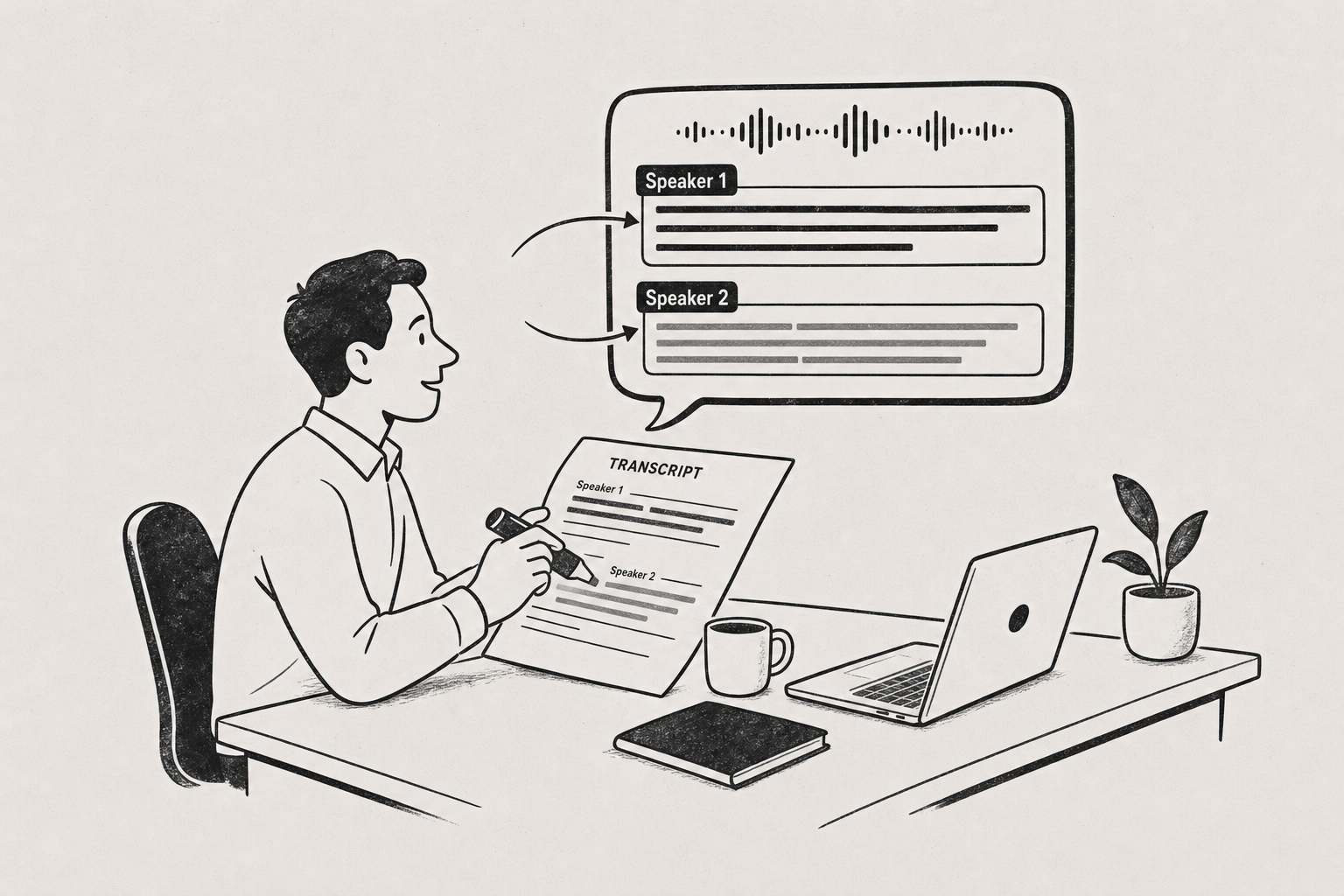
Automatic speaker detection gives you “Speaker 1” and “Speaker 2.” That’s enough to read a transcript, but not enough to coach from — and definitely not enough to paste into a CRM record that someone else will read in three months.
In Listently, speakers are detected automatically and can be renamed to real names, and the rename applies everywhere, including the AI summary. So you change “Speaker 1” to “Marcus” once and the summary now reads “Marcus asked about implementation timeline” instead of “Speaker 1 asked.”
Renaming takes about fifteen seconds and changes the transcript from a document you have to decode into one you can scan.
On multi-party calls — a rep, a sales engineer, and two people from the prospect’s side — speaker separation gets harder. Overlapping speech and similar voices are the usual culprits. The rules for accurate multi-speaker transcription cover what to do at record time to make this cleaner.
Step 3: Read the AI summary for per-speaker talking points
A full 45-minute discovery call transcript is roughly 6,000–7,000 words. You are not reading all of them for every rep every week.
The summary is the triage layer. Listently’s AI summary is generated from the actual transcript text, attributes points to specific speakers, and is instructed not to invent action items or conclusions that aren’t actually in the call. That last constraint matters more than it sounds — a summary that fabricates a “next step: send proposal” that nobody agreed to is worse than no summary, because it goes into the CRM and someone acts on it.
Use the summary to decide which calls deserve a full read, then read those transcripts in full. For a rep who’s losing deals at the same stage repeatedly, read three of those calls end to end. For everyone else, the summary plus a skim is enough.
What to look for in a per-speaker summary:
- Who raised the budget conversation — the rep, or the prospect, and how late
- What objections the prospect actually stated, in their words, versus what the rep reported in the CRM
- Whether next steps were mutually agreed or assumed by the rep
- Which discovery questions went unanswered and never got circled back to
We’ve written more about how speaker attribution works inside summaries and where it breaks down in What Teams Get Wrong About AI Meeting Summaries.
Step 4: Mark coachable moments with highlights and comments
This is where a transcript beats a recording. Scrubbing a video to find the moment a rep fumbled the security question is tedious; finding it in text takes a search.
Listently’s highlight and comment feature (Pro) lets you select transcript text, mark it in one of five colors, and attach a private comment. A usable color system for sales coaching:
| Color | Means |
|---|---|
| Green | Did this well — reinforce it |
| Red | Missed or mishandled — the core coaching point |
| Yellow | Objection raised by prospect |
| Blue | Competitor or pricing mention |
| Purple | Follow-up commitment made on the call |
Highlighting four or five moments per call gives you a 1:1 agenda you can work through in fifteen minutes instead of replaying audio together. Comments are private, so you can write the coaching note when you read the call and still deliver it in person.
The same color-coding approach generalizes beyond sales — there’s a fuller writeup in How to Annotate Meeting Transcripts.
Searching across calls finds patterns one call can’t
The library search in Listently matches transcript text content, not just titles. Search “too expensive” or a competitor’s name across your transcript library and you get every call where it came up.
That’s how you find team-wide patterns: if six of eight reps got the same objection last month and four of them changed the subject, that’s a training session, not a 1:1.
Step 5: Export clean notes for the CRM
CRM notes have a different job than coaching transcripts. Nobody wants 7,000 words in an opportunity record. They want: what the prospect’s situation is, what they objected to, what was agreed, and when.
Build the CRM entry from the summary, not the raw transcript. Then export in whatever format fits your process — Listently exports to Word, PDF, and SRT/VTT subtitles. Word is the practical one here: paste the summary into the opportunity record, attach the PDF of the full transcript if your team wants the receipts.
One cleanup step worth doing first: turn on the hide-filler-words toggle before exporting, so “um,” “uh,” and similar don’t carry into the notes. It hides them from the on-screen transcript and from exports without altering the underlying transcript, so you can switch it back on if you ever need the verbatim version. The filler-word removal walkthrough covers the details.
If you’re weighing whether you need the transcript at all or just the notes, Meeting Notes vs Transcript is the relevant comparison — for coaching, you want both, because the notes tell you what happened and the transcript tells you how.
Set up custom vocabulary once so product names stop getting mangled
Sales calls are dense with proper nouns: your product names, your competitors’, the prospect’s company, internal acronyms, feature tiers. Generic transcription models get these wrong consistently, and a transcript that spells your flagship product three different ways is harder to search.
Custom vocabulary fixes this permanently. Save the terms once — 15 on Free, 50 on Pro — and future transcripts spell them correctly automatically. A reasonable starter list for a sales team:
- Your product and feature names
- Your top five competitors
- Pricing tier names
- Internal acronyms that come up on calls (MSA, SOC 2, whatever applies)
- The names of the reps themselves, so speaker renaming is consistent
Setup takes a few minutes and is covered in How to Set Up Custom Vocabulary.
Batch the week’s calls instead of uploading one at a time
A manager reviewing a team of six is dealing with maybe fifteen to twenty-five recordings a week. Uploading those individually is the thing that kills the habit.
Pro accounts can select or drop up to 10 audio files at once. Upload Monday morning’s batch, let it process, then work through the summaries in one sitting rather than touching the tool twenty times a week. The batch upload guide has the mechanics.
Free is one file at a time, with 3 transcriptions per day and a 30-minute cap per file. That’s enough to evaluate the workflow on a few calls. A full demo call usually runs past 30 minutes, so most sales teams hit the Pro line quickly — Free vs Pro: When You’ll Hit the Wall lays out where exactly.
Common questions
Does the prospect’s audio quality ruin the transcript? It degrades it. A prospect on a laptop mic in an open office transcribes worse than one on a headset. Accuracy depends mostly on the audio you feed in — these five factors cover what moves the needle. Your rep’s side is usually the cleaner half, and that’s the half coaching focuses on anyway.
Can I transcribe calls in other languages? Yes — Listently supports over 100 languages, which matters if you run regional teams. See transcribing audio in another language.
Is the call audio used to train AI models? Not at Listently. Audio and transcripts are never used to train any AI model and never shared with third parties, and uploaded audio is deleted immediately after processing. That’s a real question for sales teams handling prospect financials and roadmap discussions — more on how to evaluate it across vendors in Does Transcription Software Train AI on Your Audio?.
What if the transcript gets something wrong? Transcripts and speaker names are both editable after transcription completes. Fix the name once in the custom vocabulary list and it stops recurring.
If you want to run this on your own calls, start free at Listently — three transcriptions a day is enough to test the workflow on a week’s worth of discovery calls before deciding whether it earns a spot in your team process.