September 18, 2026 · By The Listently Team
Transcribe Audio From a Google Drive Link: No Download
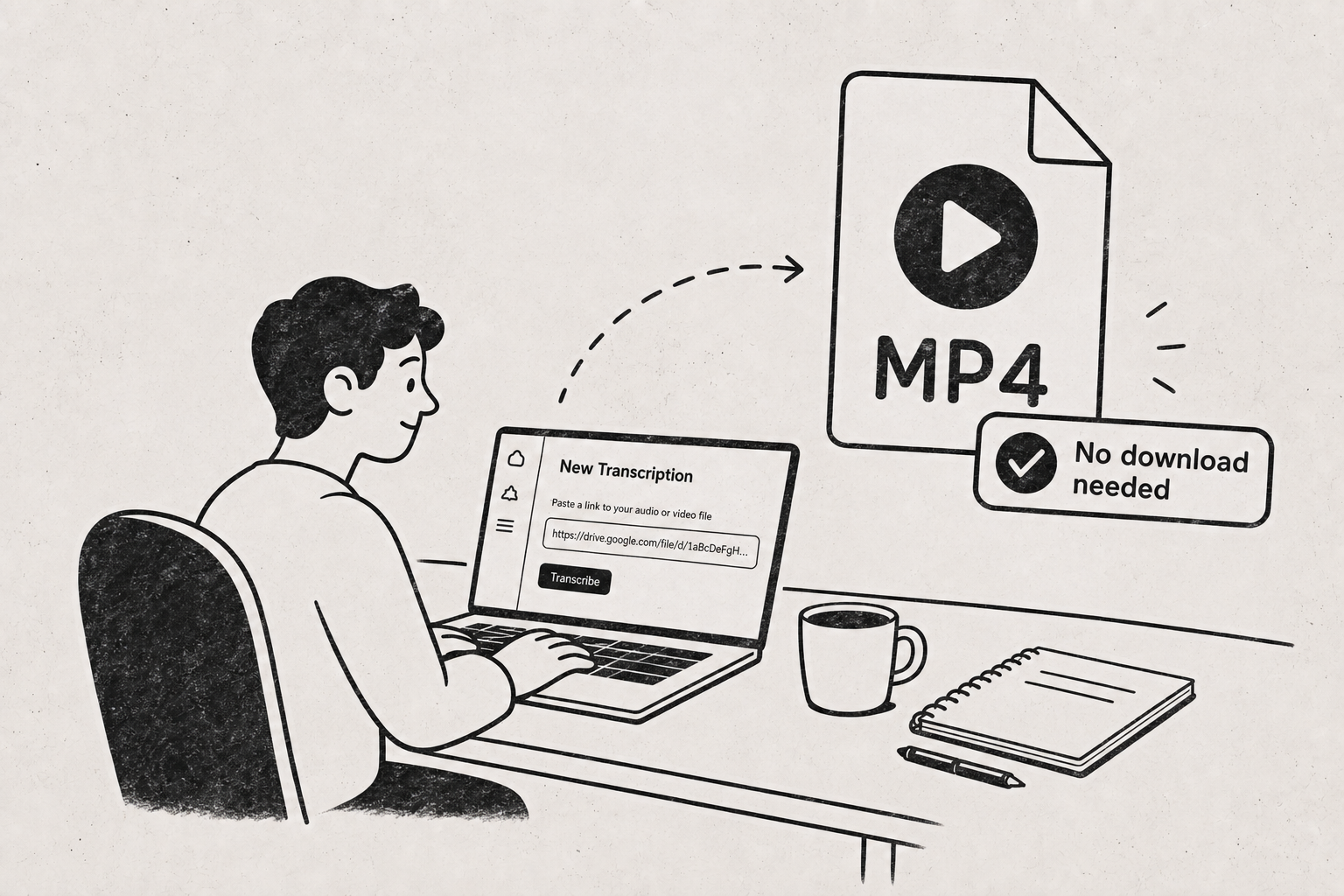
If your team’s recordings already live in a shared Google Drive folder, you don’t need to download each file to your laptop before transcribing it. In Listently, you paste the Google Drive share link into the upload screen and Listently fetches the file directly from Drive. The file never touches your local disk. The steps: open the recording in Drive, set its sharing to “Anyone with the link,” copy the link, paste it into Listently’s Google Drive import field, and start the transcription. A few minutes later you get a speaker-labeled transcript plus an AI summary, and you can export to Word, PDF, or SRT/VTT. This matters most for long files — a 90-minute board meeting recording can be a multi-gigabyte MP4, and downloading then re-uploading it means moving those gigabytes twice across your connection for no reason. Google Drive import is a Pro feature ($8.99/mo billed annually, $13.99/mo billed monthly). On the Free plan you upload files from your device one at a time instead.
Why the download-then-upload roundtrip is worth eliminating
The roundtrip isn’t just slow. It creates three specific problems for teams working out of a shared Drive.
You move the same data twice. A one-hour screen recording exported as MP4 is routinely 1–3 GB. Downloading it and then uploading it means your connection carries that twice, and on hotel Wi-Fi or a tethered phone it’s the difference between “done in five minutes” and “abandoned.”
You end up with duplicate copies scattered across laptops. Someone downloads the all-hands recording to their Downloads folder, transcribes it, forgets to delete it, and now there’s an uncontrolled copy of a sensitive internal meeting sitting on a personal machine. Fetching straight from Drive skips that entirely.
It breaks when the person who needs the transcript isn’t the person who recorded it. A contractor, a new hire, or someone on another team has view access to the shared folder but no particular desire to pull a 2 GB file down to their device. A link paste works the same for them as it does for the owner.
How to transcribe audio from a Google Drive link: 5 steps
- Open the file in Google Drive and confirm it’s one of the supported formats: MP3, WAV, M4A, FLAC, OGG, MP4, MOV, or MKV. Video works fine — Listently transcribes the audio track.
- Set sharing to “Anyone with the link.” Right-click the file → Share → under “General access,” switch from “Restricted” to “Anyone with the link.” Viewer permission is enough. If the link stays restricted to specific accounts, the fetch can’t reach the file.
- Copy the share link. Click “Copy link” in the same dialog.
- Paste it into Listently’s Google Drive import field on the upload screen, instead of choosing a file from your device.
- Start the transcription. Listently pulls the file from Drive and processes it. When it’s done you get the transcript with speaker labels and an AI summary.
The whole flow takes about thirty seconds of your attention, and none of it depends on your local disk having room for the file.
After the transcription finishes, you can tighten the sharing back to “Restricted” in Drive. The fetch happens at import time; Listently doesn’t need standing access to the file afterwards.
Where the link-paste approach fails
Two things trip people up, and both are on the Drive side rather than the transcription side:
- The file is still set to “Restricted.” This is the overwhelmingly common failure. A file inside a shared folder inherits folder-level permissions that may be account-scoped, which is not the same as link-accessible. Change it at the file level.
- The file isn’t a supported format. A
.wmavoice memo or a.webmbrowser recording won’t import. Convert to MP3 or MP4 first, put the converted file back in Drive, and share that link.
Google Drive import is Pro-only, along with batch upload
Google Drive import requires a Pro account. It’s worth understanding what else changes at that tier, because the features that make Drive-based workflows practical tend to travel together.
| Free | Pro | |
|---|---|---|
| Google Drive link import | No | Yes |
| Transcriptions | 3 per day | Unlimited |
| Max file length | 40 minutes | No limit |
| Upload size | 2 GB | 5 GB |
| Batch upload | One file at a time | Up to 10 files at once |
| Custom vocabulary terms | 15 | 50 |
| Price | Free | $8.99/mo annual, $13.99/mo monthly |
The 40-minute cap on Free is usually the deciding factor for teams, not the Drive import itself — most recorded meetings run longer than that. If you’re weighing the two tiers, our Free vs Pro breakdown walks through which limit you actually hit first.
Batch upload pairs naturally with a shared-Drive setup: if a week of standups piled up in the folder, Pro lets you drop up to 10 audio files at once rather than feeding them in individually.
Set up custom vocabulary before you import the backlog
If you’re about to run a folder of internal recordings through transcription, spend five minutes on custom vocabulary first. It saves you from fixing the same misspelled product name across twenty transcripts.
Custom vocabulary stores names, jargon, and acronyms so future transcripts spell them correctly automatically — 15 terms on Free, 50 on Pro. For a typical team that means your product names, your two or three internal acronyms, and the surnames of people who speak often.
Terms you add apply to future transcriptions, so add them before you batch-import a backlog, not after. The custom vocabulary setup guide covers what to prioritize when you only have a few dozen slots.
Rename speakers once and the AI summary updates too
Listently detects speakers automatically and labels them generically. You rename them to real names after the transcript completes, and the rename propagates everywhere — including the AI summary, which attributes points to specific speakers.
That’s the part that makes a Drive-sourced transcript actually usable as a team artifact. “Speaker 2 raised a concern about the timeline” is noise. “Priya raised a concern about the timeline” is something you can paste into a project channel.
The AI summary is generated from the actual transcript text and is instructed not to invent action items or conclusions that weren’t said. If you want more on why that constraint matters, we wrote about what teams get wrong about AI meeting summaries.
Transcript text and speaker names are both editable after transcription completes, so a stray mislabel is a quick fix rather than a re-run.
Finding the right transcript later: search reads transcript text, not just titles
Teams that store recordings in Drive usually have a naming problem: half the files are called Zoom_Recording_2026-03-14.mp4. Once those are transcribed, the library search box matches both the title and the transcript’s text content — so searching a phrase someone actually said will surface the right transcript even when the filename tells you nothing.
In practice this means you stop relying on file naming discipline that your team was never going to maintain anyway.
A note on consent before you transcribe the shared folder
Recording-consent rules vary by jurisdiction, and a shared Drive folder full of call recordings is exactly the kind of archive where nobody remembers who agreed to what. Some places require all parties to consent to a recording; others require only one. Company policy may also be stricter than the law.
Transcribing an existing recording doesn’t change the legal status of how it was captured, but it does make the contents far easier to search, quote, and forward. Check what applies to your team and your participants before you make a hard-to-search video archive into a fully searchable text one.
On the storage side: Listently deletes uploaded audio immediately after processing, and audio and transcripts are never used to train any AI model and never shared with third parties. More detail on that in our post on whether transcription software trains AI on your audio.
Common questions
Does the Drive file need to stay shared after transcription? No. Listently fetches the file when you import it. You can set sharing back to “Restricted” once the transcription has started.
Can I paste a link to a Drive folder instead of a single file? Paste a share link for an individual file. If you have several files to process, a Pro account lets you select or drop up to 10 audio files at once.
Does video work, or only audio? Video works. Listently supports MP4, MOV, and MKV alongside MP3, WAV, M4A, FLAC, and OGG, and transcribes the audio track. You can export subtitles as SRT or VTT if you need them back on the video.
What language does it handle? Over 100 languages are supported for transcription.
If your recordings already live in a shared Drive folder, the link-paste import removes the most annoying step in the workflow. Try Listently free to see how the transcripts come out, then move to Pro when you want Drive import and batch uploads.