September 7, 2026 · By The Listently Team
How to Set Up Custom Vocabulary: Fix Names & Jargon
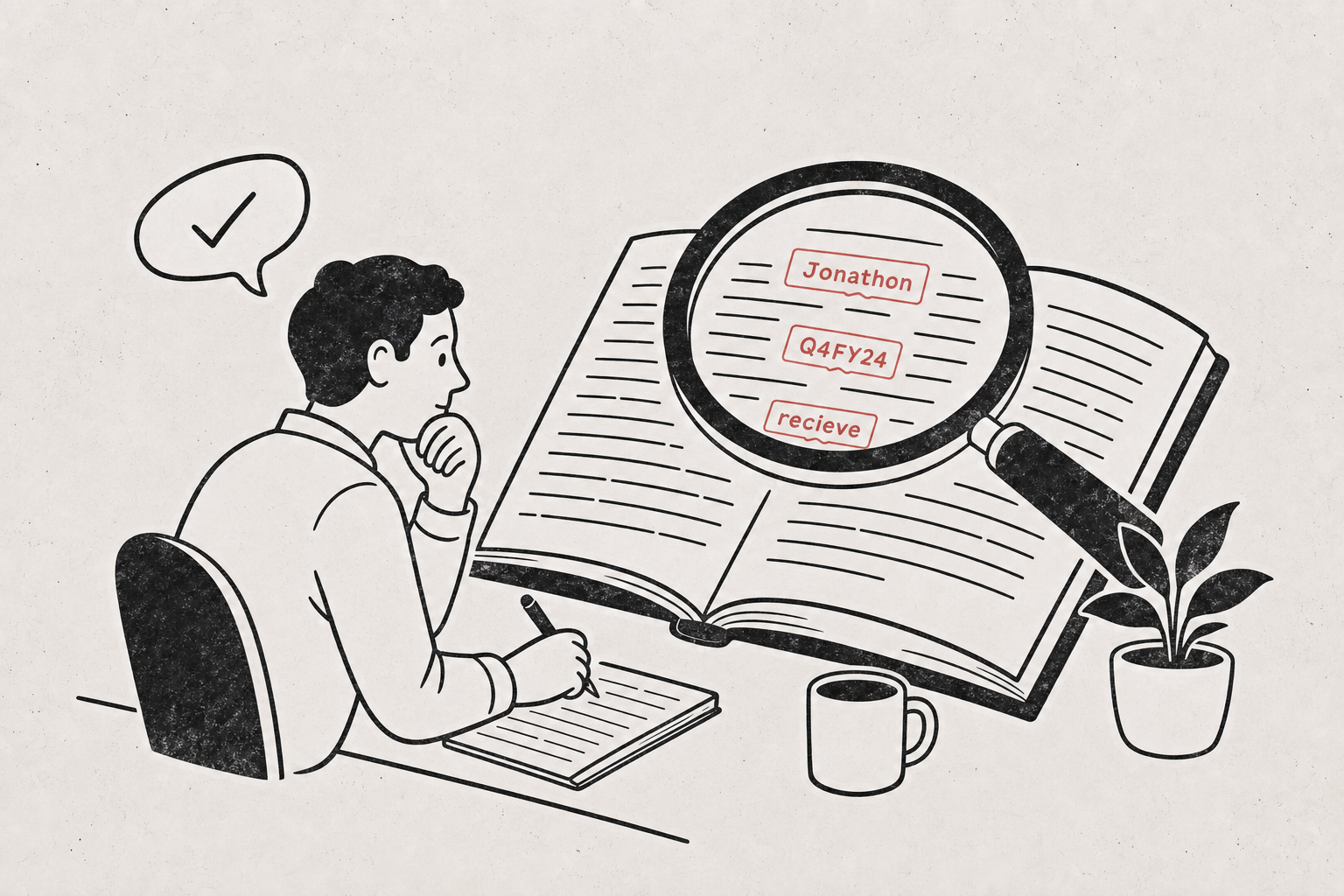
Custom vocabulary is a saved list of words — people’s names, product names, acronyms, industry jargon — that a transcription tool checks against when it converts speech to text. You add each term once, spelled exactly the way you want it to appear, and every transcript you generate afterward uses that spelling automatically. It fixes the single most annoying category of transcription error: the tool hears the audio correctly but writes a plausible common word instead of the specific term you actually said. “Kubernetes” becomes “cooper netties.” “Dr. Nwosu” becomes “Dr. and Waso.” “SOX compliance” becomes “socks compliance.” To set it up in Listently: open your account’s custom vocabulary settings, enter each term exactly as it should be spelled and capitalized, save, and then upload your file — terms apply to transcripts created after you save them, not retroactively. Free accounts can save 15 terms; Pro accounts can save 50. For most people, 15 covers a recurring meeting’s core cast and product names; 50 is what you need when you’re transcribing across multiple clients, specialties, or ongoing projects.
Custom vocabulary fixes errors that better audio can’t
There are two different reasons a transcript gets a word wrong, and they need different fixes.
The first is acoustic: someone mumbled, the mic was across the room, two people talked over each other. That’s an input problem, and you fix it before you record — mic placement, one speaker at a time, a quiet room. We covered that in detail in 9 ways to improve transcription accuracy before you record.
The second is lexical: the audio was perfectly clear, but the term isn’t common enough for the model to prefer it over a similar-sounding everyday word. No amount of microphone upgrading fixes a lexical error, because the model heard you correctly and still chose the wrong word. That’s exactly the gap custom vocabulary closes.
This is why the payoff is highest for people with dense specialist vocabulary. Medical terms, drug names, legal citations, ticker symbols, internal codenames, and non-English surnames all fall into the same bucket: clear audio, wrong spelling, every single time, until you tell the tool what the word actually is.
Setting up custom vocabulary: a five-step process
The mechanics take about ten minutes once, and then you stop thinking about it.
- Pull the terms from an existing transcript, not from memory. Open your two or three most recent transcripts and scan for the words that came out wrong. This is faster and more accurate than trying to brainstorm a list — your actual errors tell you exactly what the model struggles with.
- Write each term exactly as it should appear in the finished transcript. Capitalization, hyphens, and periods matter. If you want “PagerDuty” and not “Pagerduty,” type “PagerDuty.” If you want “Ms. Ferreira,” include the honorific spelling you use.
- Add one entry per distinct term. Don’t stack a phrase and its abbreviation into a single line. “Return on ad spend” and “ROAS” are two entries because people say both out loud.
- Save the list before you upload. Custom vocabulary applies to transcripts generated after the term is saved. If you’ve already run a file, adding the term won’t rewrite that finished transcript — you’d need to re-run the file or edit the text directly.
- Run one test file and check the terms. Use a short clip where you know the tricky words appear. If something still comes out wrong, check for a typo in your entry or add the variant spelling people actually pronounce.
Listently stores custom vocabulary at the account level, so the list follows you across uploads instead of being re-entered per file. Transcripts and speaker names also stay editable after processing, so anything that slips through the list is a quick manual fix rather than a re-run.
What belongs on the list: proper nouns, acronyms, and terms of art
Not everything deserves a slot. The best candidates share three traits: they recur across recordings, they’re spelled non-obviously, and getting them wrong costs you real editing time or credibility with the reader.
| Category | Good entries | Why it earns a slot |
|---|---|---|
| People’s names | Nwosu, Siobhán, Ravichandran | Recur in every meeting; wrong spelling is embarrassing in shared notes |
| Product & company names | PagerDuty, Listently, Xero | Marketing and support transcripts repeat them constantly |
| Acronyms | ROAS, HIPAA, SOX, EBITDA | Heard as common words (“socks,” “hippa”) |
| Clinical / legal terms | metformin, voir dire, subrogation | Rare in general speech, high cost if wrong |
| Internal codenames | Project Halyard, Tier-2 escalation | Nothing outside your company has ever seen them |
Skip anything the tool already gets right, and skip one-off words that appear in a single recording — those are faster to fix with a find-and-replace in the transcript editor than to spend a permanent slot on. Also skip generic industry words like “onboarding” or “roadmap”; they’re common enough that transcription handles them fine.
One more practical note: if a term has a widely used spoken form that differs from the written form, add the form people say. If your team says “PD” out loud but writes “PagerDuty,” both entries are worth having.
Free gives you 15 terms; Pro gives you 50
The cap is the main practical difference between plans for this feature.
| Free | Pro | |
|---|---|---|
| Custom vocabulary terms | 15 | 50 |
| Transcriptions | 3/day | Unlimited |
| File length limit | 40 min | None |
| Upload size | 2GB | 5GB |
| Batch upload | One file at a time | Up to 10 files at once |
| Google Drive import | — | Yes |
| Price | $0 | $8.99/mo billed annually, $13.99/mo monthly |
Fifteen terms is enough for one recurring context: a single team’s names plus a handful of product terms, or one podcast’s regular guests and segment names. It stops being enough the moment you’re covering more than one context — two clients, two specialties, or a podcast plus your internal standups — because each context brings its own dozen proper nouns and they compete for the same 15 slots.
Fifty terms is the practical ceiling for most professional workloads: a clinician’s common drug and procedure names, a law firm’s recurring case parties and terms of art, or an agency’s full client roster. If you’re weighing the upgrade for other reasons too, Listently Free vs Pro: when you’ll hit the wall walks through the other limits.
How to prioritize when you only have 15 slots
Rank candidates by frequency multiplied by correction cost. A name that appears 40 times in an hour-long meeting and is wrong every time is worth far more than a term that shows up twice. Then:
- Give the first slots to people who speak in most of your recordings.
- Give the next slots to acronyms that get transcribed as real English words, because those are the hardest to catch when you proofread — spellcheck won’t flag “socks.”
- Leave the last two or three slots empty for a week and fill them from real errors you spot, rather than guessing.
Custom vocabulary and speaker labels solve two different problems
People sometimes expect the vocabulary list to fix speaker names. It doesn’t — those are separate systems.
Listently detects speakers automatically and labels them, and you rename each one to the person’s real name after transcription. That rename applies everywhere in the document, including the AI summary, so the summary attributes points to “Priya” rather than “Speaker 2.”
Custom vocabulary controls how words are spelled inside the spoken text; speaker renaming controls who the transcript says is talking. You’ll usually want both: the vocabulary list so a name is spelled right when someone says it out loud, and the rename so the label above their lines matches. For multi-speaker recordings, our 7 rules for multi-speaker accuracy covers the rest.
If you’re recording interviews or meetings to build these lists from, note that recording-consent rules differ by jurisdiction — some places require all parties to agree, others only one. Check the rule where you and your participants are before you hit record.
Common questions
Does adding a term fix transcripts I already generated? No. Custom vocabulary applies to transcripts created after you save the term. For finished transcripts, edit the text directly — transcripts stay editable after processing.
Does custom vocabulary work in languages other than English? Listently transcribes in over 100 languages, and the vocabulary list is just a set of saved strings, so non-English names and terms are exactly the kind of thing it’s for — surnames and place names are among the most commonly mis-transcribed words in any language.
Will the AI summary use my corrected spellings? Yes. The summary is generated from the actual transcript text, so whatever spelling appears in the transcript is what appears in the summary.
What if a term still comes out wrong after I add it? Check for a typo or extra whitespace in your entry first. If the term has multiple spoken forms, add the one people actually say aloud, not just the written form.
Set up your list once and stop re-fixing the same five words. Try Listently free — 15 custom vocabulary terms are included on the free plan.