October 7, 2026 · By The Listently Team
How to Remove Filler Words From a Transcript Fast
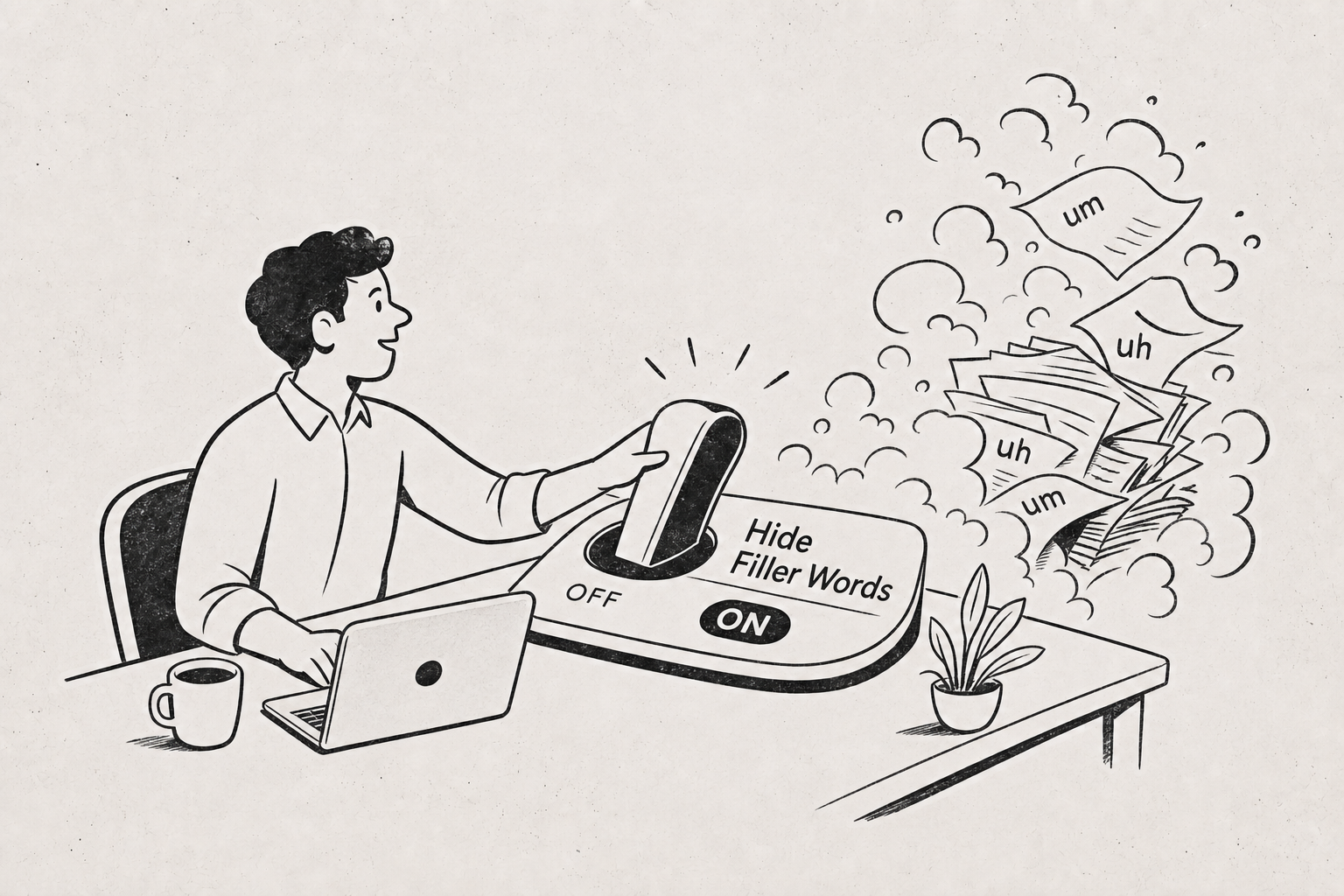
The fastest way to remove filler words from a transcript is to use a toggle that hides them at the display layer rather than deleting them from the text. In Listently, that’s a one-click Hide filler words switch available on Pro accounts: flip it on and words like “um” and “uh” disappear from the on-screen transcript and from anything you export — Word, PDF, or SRT/VTT subtitles. Flip it off and the original transcript is back, unchanged. Nothing is rewritten or permanently deleted, which matters because the underlying verbatim record stays intact for anyone who later needs it. That distinction is the whole point. Manual cleanup — find-and-replace, or deleting fillers by hand — destroys the verbatim version, and once it’s gone you can’t check a disputed quote against what was actually said. A toggle gives you both: a clean copy for publishing and an accurate one for verification, from the same file. For journalists pulling quotes, podcasters writing show notes, and anyone turning a recording into copy, this removes the slowest step in the process.
The toggle hides filler words; it does not edit the transcript
There are two ways to deal with “um” in a transcript, and they are not equivalent.
The first is destructive: you run find-and-replace, or you read through and delete each one. The text changes. The verbatim version no longer exists unless you kept a separate copy, and keeping separate copies is how people end up quoting from the wrong file.
The second is non-destructive: the fillers stay in the stored transcript, but the view suppresses them. Listently’s Hide filler words toggle works this way — the underlying transcript is never altered, so turning the toggle off restores the original exactly.
That matters more than it sounds. If an interview subject later disputes a quote, you need to be able to show what was actually recorded, including the hesitations. Fact-checkers ask for this. Editors ask for this. A toggle means you never have to choose between a clean draft and a defensible record.
It also means you can’t get it wrong. There’s no regex to tune, no risk of your find-and-replace catching “um” inside “number” or “umbrella” — a classic way to mangle a 90-minute transcript in under a second.
Find-and-replace is the slow, error-prone alternative
If you’ve cleaned transcripts manually, you already know the failure modes. Here’s what the manual approach actually costs on a typical hour-long interview:
| Approach | Time on a 60-min transcript | Verbatim preserved? | Risk |
|---|---|---|---|
| Manual deletion, read-through | 30–60 min | Only if you saved a copy | Missed instances, accidental edits |
| Find-and-replace in Word | 2–5 min | No | Substring matches, broken spacing |
| Asking an AI tool to “clean it up” | 1–3 min | No | Rewording, invented phrasing |
| Hide filler words toggle | 1 click | Yes | None — it’s reversible |
The third row is the one worth flagging. Handing a transcript to a general-purpose AI and asking it to “remove the filler words” frequently produces a rewritten transcript, not a cleaned one — tightened grammar, smoothed phrasing, occasionally a sentence the speaker never said. For a blog draft that may be acceptable. For a published quote attributed to a named person, it isn’t.
A display-level toggle can’t reword anything, because it isn’t generating text. It’s suppressing specific tokens from the render.
Exports inherit whatever state the toggle is in
Hiding fillers on screen is only half useful if the export puts them back. It doesn’t.
When the toggle is on, the filler words are absent from the Word document, the PDF, and the SRT/VTT subtitle files you download. When it’s off, exports contain the full verbatim text.
In practice this means you export twice from the same transcript: a clean version for the piece you’re publishing, and a verbatim version for your records or your editor. No duplicate uploads, no second transcription, no reconciling two files that drifted apart.
The subtitle case is the one people underestimate. Captions are read, not heard, and a reader’s eye trips over every “uh” in a way the ear doesn’t. Cleaned SRT output tends to read noticeably better on video — and if subtitles are new territory for you, the step-by-step SRT guide covers the export side in full.
A five-step workflow from recording to publishable quote
Here’s the sequence that actually gets a usable pull-quote out of a recording quickly:
- Upload the file. MP3, WAV, M4A, FLAC, OGG, MP4, MOV, and MKV all work, so you can drop a raw video recording in without converting it first.
- Rename the speakers. Speaker detection runs automatically; replacing “Speaker 1” with the real name applies everywhere, including the AI summary. Quotes aren’t quotable until they’re attributed.
- Turn on Hide filler words. The on-screen transcript cleans up immediately.
- Find the passage. The library search box matches transcript text, not just titles, so searching a phrase you half-remember from the conversation will surface the right transcript and the right spot.
- Export the clean version as Word or PDF, and — if you need it — toggle back off and export the verbatim copy alongside it.
Steps 2 and 3 are the two that turn a raw transcript into something you can paste into a draft without further editing. Everything else is file handling.
If you’re regularly pulling quotes from the same subject or the same subject area, it’s worth setting up custom vocabulary first so names and jargon come through spelled correctly — that’s the other common reason a quote needs hand-editing before publication.
Keep the fillers when verbatim accuracy is the deliverable
Hiding filler words is the right default for published copy. It’s the wrong default for several real use cases:
- Qualitative and UX research. Hesitation is data. A participant who pauses and says “um” three times before answering is telling you something about confidence or discomfort that the cleaned text doesn’t carry. For coding and synthesis, work from the verbatim view — our guides to qualitative interview transcripts and UX research synthesis both assume verbatim source text.
- Legal and compliance records. Anything that may become part of a case file or an official record should stay verbatim. Hide it on screen if it helps you read; export it verbatim.
- Speech coaching and media training. The filler words are the thing you’re measuring. Hiding them defeats the exercise.
- Linguistics and discourse analysis. Obviously.
The useful framing: hide fillers when the transcript is an input to something you’ll write, keep them when the transcript itself is the artifact. Because the toggle is reversible, you don’t have to decide this at upload time.
The toggle is a Pro feature; Free gets the verbatim transcript
Hide filler words is available on Pro accounts only. The Free plan still produces the full speaker-labeled transcript with an AI summary — 3 transcriptions per day, up to 30 minutes per file — you just do any filler cleanup yourself in whatever editor you use.
Pro is $8.99/mo billed annually or $13.99/mo billed monthly, and the filler toggle arrives alongside unlimited transcriptions, no file-length limit, 5GB uploads, batch upload of up to 10 files at once, Google Drive link import, and highlight-and-comment review. If you’re weighing it up, the Free vs Pro breakdown is more specific about where each plan runs out.
One practical note for anyone recording other people: consent rules for recording conversations vary by jurisdiction, and some places require every participant to agree. Sort that out before you hit record, not after you have a transcript you can’t use.
Common questions
Does hiding filler words change the timestamps or subtitle timing? The underlying transcript isn’t modified, so the toggle is a display and export filter rather than a re-edit of the transcript’s content. Turning it off restores exactly what was transcribed.
Can I remove filler words from only part of a transcript? The toggle applies to the whole transcript. If you need a mixed result, export the clean version and the verbatim version separately and assemble what you need in your editor.
Will the AI summary include filler words? The summary is generated from the actual transcript text and attributes points to specific speakers; it’s written as a summary, not a verbatim reproduction. For more on how attribution works there, see what teams get wrong about AI meeting summaries.
Is the transcript itself editable? Yes. Transcript text and speaker names can both be edited after transcription completes, independently of the filler toggle.
If you’re spending more time cleaning transcripts than writing from them, that’s a fixable problem. Try Listently free and see how a transcript reads with the fillers out of the way.