September 16, 2026 · By The Listently Team
How to Transcribe Audio in Another Language (2026)
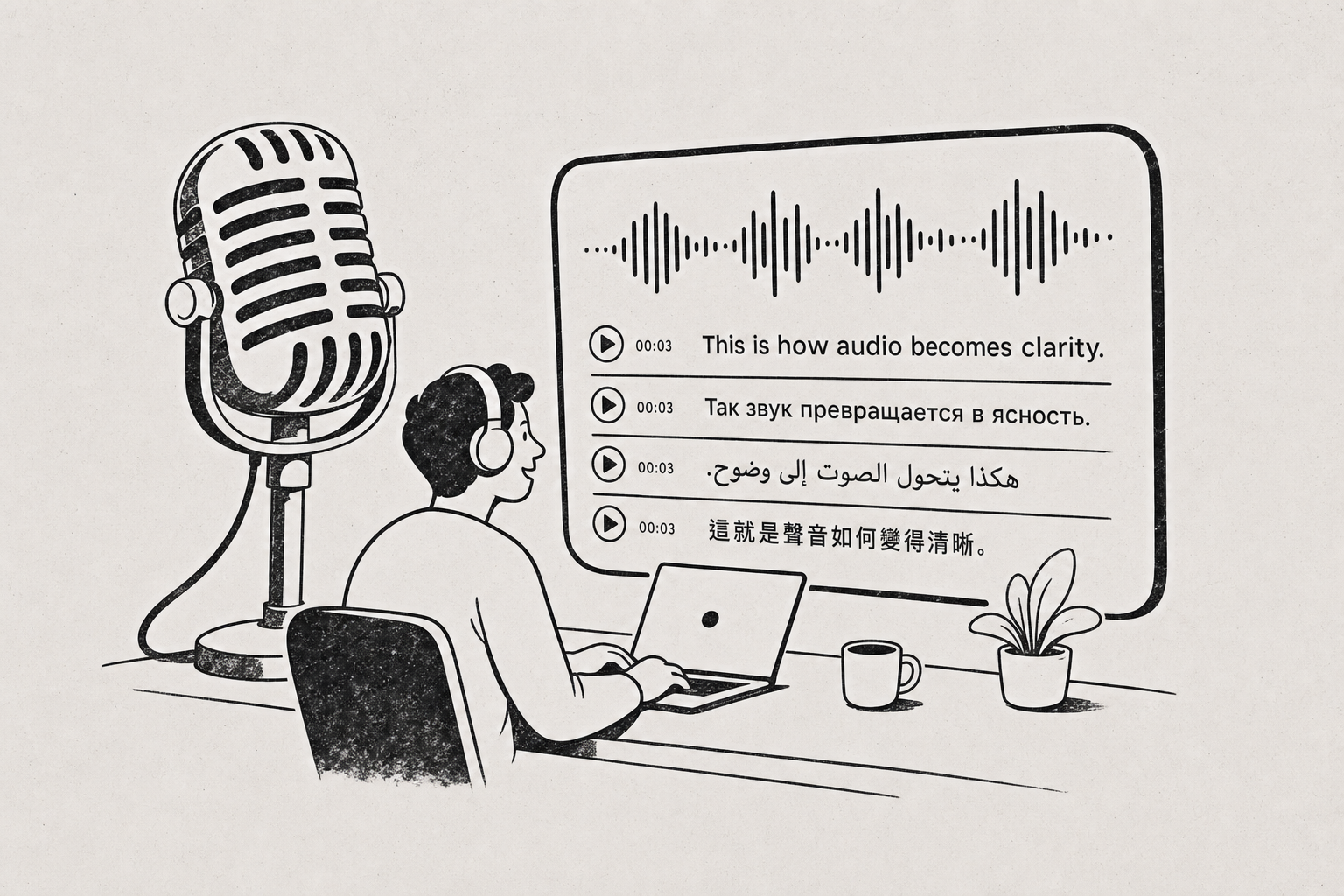
To transcribe audio in another language, you upload the recording the same way you would an English one and get back a transcript written in the language that was actually spoken — not an English translation. That distinction matters: “100+ languages supported” means the transcription engine recognizes speech in those languages and writes it out in their own script and spelling, including languages that don’t use the Latin alphabet. Speaker labels work independently of language, because speaker detection is based on voice characteristics rather than vocabulary, so a Japanese or Portuguese recording gets the same Speaker 1 / Speaker 2 structure an English one does. The two things that genuinely degrade non-English accuracy are the same things that degrade English accuracy: poor audio and unfamiliar proper nouns. Strong accents are usually handled fine as long as the speaker is consistently in one language. Recordings that switch languages mid-sentence — code-switching — are the hardest case and the one most likely to need manual cleanup afterward. Listently supports over 100 languages, with automatic speaker detection and editable transcripts, so fixes after the fact are straightforward.
“100+ languages” means output in the source language, not translation
This is the most common misunderstanding. A transcription tool that supports 100+ languages produces a transcript in those languages. A German interview comes back in German, with German spelling and punctuation. A Hindi recording comes back in Devanagari.
Transcription and translation are separate operations. If you need an English version of a Portuguese interview, you transcribe first, then translate the resulting text with whatever translation tool you prefer. Working from an accurate native-language transcript almost always beats translating from audio directly, because you can see and correct errors before they get compounded by a second pass.
Practically, this means your non-English workflow is identical to your English one: upload, wait a few minutes, review, export. The output just isn’t in English.
Speaker labels come from voices, not from words
Automatic speaker detection analyzes acoustic characteristics — pitch, timbre, speaking rhythm — to decide when the voice changes. It doesn’t need to understand the language to notice that a different person started talking.
That’s why a two-person Korean interview gets the same Speaker 1 / Speaker 2 segmentation as an English one. In Listently, speaker labels are automatic, and you can rename them to real names after the fact; the rename applies everywhere, including in the AI summary.
What does affect speaker accuracy is the same across every language:
- Overlapping speech. When two people talk simultaneously, the boundary gets guessed.
- Similar voices. Two speakers with close vocal ranges are harder to separate than a mixed pair.
- Single-mic room recordings. Distance and reverb blur the acoustic fingerprint.
If you’re transcribing group discussions in any language, the rules in our guide on multi-speaker transcription apply unchanged — they’re about microphones and turn-taking, not vocabulary.
Accents are usually fine; bad audio is what breaks accuracy
Speech recognition models are trained on a wide range of accents within each language, so a Scottish English speaker, a Nigerian English speaker, and a Singaporean English speaker are all normal inputs rather than edge cases.
Where accented audio does cause problems is in combination with other issues. A heavy accent over a laptop mic in a reverberant room, with a background air conditioner, will produce a worse transcript than the same accent recorded on a lapel mic in a quiet room. The accent isn’t the deciding factor — the signal quality is.
If you know a recording will feature accents the model may find less common, spend the effort on the microphone rather than on searching for a special accent setting. Our list of ways to improve transcription accuracy before you record is where that effort pays off, and reducing background noise matters more here than in a clean studio recording.
Mixed-language recordings are the hardest case — split them if you can
Code-switching — a speaker moving between two languages mid-conversation, or even mid-sentence — is genuinely difficult for any transcription system. The engine is resolving sounds against a language’s phonetic and lexical patterns, and switching mid-stream gives it contradictory signals.
Expect these outcomes in mixed-language audio:
| Situation | Typical result |
|---|---|
| Occasional loanwords or brand names in another language | Usually handled; may be spelled phonetically |
| Whole sentences alternating between two languages | Mixed quality; the minority language degrades more |
| Constant intra-sentence switching | The weakest case; expect meaningful cleanup |
| Two speakers each consistently in a different language | Better than intra-sentence switching, but still inconsistent |
The practical fix is segmentation. If your recording has a clearly bilingual structure — for example, 20 minutes in French followed by 20 minutes in English — split the audio file into two files at that boundary in any audio editor and transcribe each separately. You’ll get two clean transcripts you can stitch together, rather than one transcript with a confused middle.
When splitting isn’t possible, plan for an editing pass instead of hoping for a perfect first output. Listently transcripts are editable after transcription completes, so correcting a handful of switched-language passages is a text-editing job, not a re-transcription job.
Custom vocabulary handles non-English names, places, and jargon
Proper nouns are where non-English transcripts most often go wrong, especially when a name from one language appears inside a recording in another — a German company name in a Spanish interview, or a Polish surname in an English meeting.
Custom vocabulary solves this by saving those terms in advance so future transcripts spell them correctly automatically. Listently supports 15 saved terms on the Free plan and 50 on Pro. Good candidates for a non-English project:
- Every participant’s full name, spelled as they spell it
- Organization and product names that don’t follow the language’s normal spelling rules
- Field-specific acronyms and jargon
- Place names likely to be transliterated inconsistently
We walk through the setup in how to set up custom vocabulary. For a multi-interview research project in a single language, building this list once before the first upload saves repetitive find-and-replace work across every transcript that follows.
A realistic workflow: a 52-minute Spanish-language interview
Here’s the actual sequence for a non-English interview, from recording to usable document.
- Get consent on the record. Recording-consent rules vary by jurisdiction and, for cross-border interviews, more than one set of rules may apply. Ask permission, capture the yes in the recording itself, and check the rules for where you and your interviewee are located.
- Record to a supported format. MP3, WAV, M4A, FLAC, OGG, MP4, MOV, and MKV all work. A 52-minute WAV file is large but well under the upload ceiling.
- Save custom vocabulary first. Add the interviewee’s full name, their employer, and any technical terms you know will come up — before uploading, so the first transcript already has them right.
- Upload the file. A 52-minute interview exceeds the Free plan’s 40-minute per-file limit, so this one needs Pro, which has no file-length limit. Alternatively, split it into two files under 40 minutes each.
- Review the transcript in Spanish. Skim for obviously garbled passages — usually places with crosstalk, a cough, or a switched-language aside.
- Rename the speakers. Change Speaker 1 to “Interviewer” and Speaker 2 to the interviewee’s name. The rename propagates through the transcript and the AI summary.
- Read the AI summary. It’s generated from the transcript text and attributes points to specific speakers, which makes it a quick check on whether speaker labels got assigned correctly — if the summary credits a claim to the wrong person, your labels are swapped.
- Export. Word for quoting and editing, PDF for sharing, SRT or VTT if the interview is going into a subtitled video.
Total hands-on time for a 52-minute interview is usually 15–25 minutes of review, not the three-plus hours manual transcription would take. The general process is covered in more depth in how to transcribe an interview — the language doesn’t change the steps.
Subtitles in non-English languages use the same SRT/VTT export
If the recording is video — an MP4 or MOV of a conference talk in Italian, say — the SRT and VTT exports give you timed subtitle files in the spoken language. That’s the standard route to native-language captions, and the same file can be handed to a translator for a second subtitle track.
The mechanics are identical regardless of language, and we’ve documented them in how to create an SRT file from video.
Common questions
Do I have to tell the tool which language the recording is in? Your job is to upload a file in a supported format and review the result. Listently supports over 100 languages for transcription, and the transcript comes back in the language that was spoken.
Can I get an English translation of a non-English recording? Transcription produces text in the source language. For an English version, transcribe first, then translate the exported Word or PDF text using a translation tool. Starting from a corrected transcript gives a better translation than translating uncertain audio.
Do speaker labels work as well in non-English audio? Yes, because speaker detection is acoustic rather than linguistic. Accuracy depends on microphone setup and how much speakers overlap, not on which language they speak. If the labels are wrong, they’re editable — and so is the transcript.
What about privacy for sensitive interviews in other countries? Listently never uses audio or transcripts to train any AI model and never shares them with third parties, and uploaded audio is deleted immediately after processing. We explain that in more detail in does transcription software train AI on your audio.
If you have a non-English recording sitting on your drive, the fastest way to find out how it handles is to run one file through. Try Listently free — the Free plan covers three transcriptions a day at up to 40 minutes each, which is enough to test a real interview before committing to anything.