September 2, 2026 · By The Listently Team
9 Ways to Improve Transcription Accuracy Before You Record
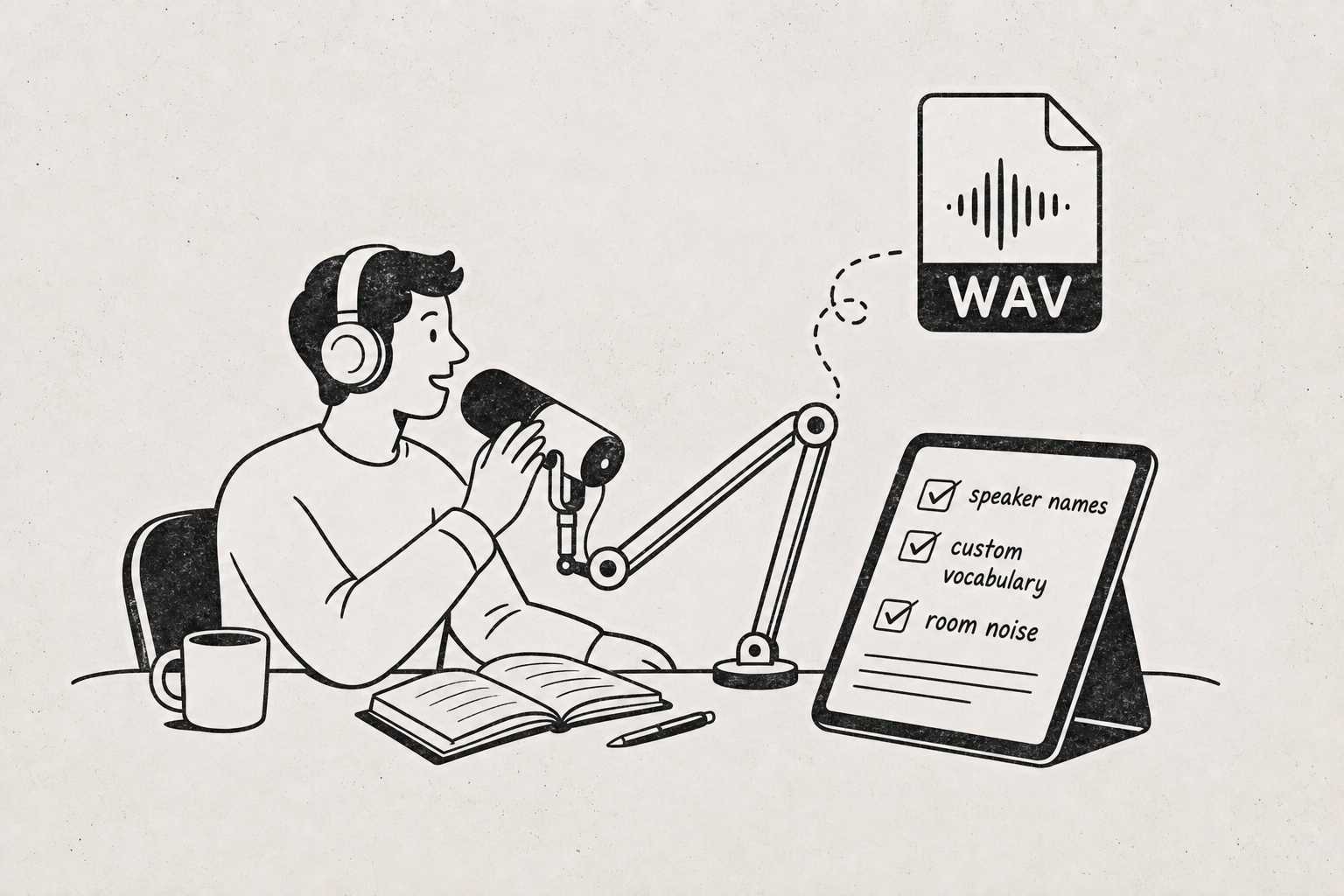
Transcription accuracy is decided mostly at recording time, not at processing time. No transcription engine can recover words that were never clearly captured, so the highest-leverage changes happen before you hit record: get the microphone within about 18 inches of each speaker, record an uncompressed or high-bitrate file (WAV, FLAC, or a 128 kbps+ MP3), and eliminate steady background noise like HVAC, fans, and traffic rather than trying to talk over it. If more than two people are involved, use a separate mic or separate track per speaker where you can — speaker separation and overlapping speech cause more transcript errors than accents or vocabulary do. Then reduce crosstalk with a simple rule that one person talks at a time, and have each speaker say their name in the first thirty seconds so labels are easy to assign afterward. Finally, pre-load proper nouns, acronyms, and industry jargon into a custom vocabulary list so the engine spells them correctly on the first pass. These nine changes cost nothing and compound: cleaner audio in means less editing time out.
1. Get the mic within 18 inches of every speaker
Distance is the single biggest variable in recorded speech quality. Doubling the distance between mouth and microphone roughly quarters the direct sound energy reaching the mic, while room reflections and background noise stay constant — so the speech-to-noise ratio collapses fast.
A laptop mic at the far end of a conference table is the worst common setup. A phone laid flat in the middle of the table is better. A lapel mic or a mic on a short stand in front of each person is dramatically better than both.
If you change only one thing, move the microphone closer. It beats every software setting and every post-processing trick.
2. Record WAV or FLAC when you can, high-bitrate MP3 when you can’t
Aggressive compression strips exactly the high-frequency detail that distinguishes consonants — the difference between “fifteen” and “fifty,” or “can” and “can’t.” Voice-memo apps and messaging-app voice notes often encode at very low bitrates, which is fine for humans filling in gaps from context and worse for machines.
| Source | Accuracy impact | Use when |
|---|---|---|
| WAV / FLAC (uncompressed) | Best | You control the recorder and have storage |
| MP3 / M4A at 128 kbps+ | Very good | You need smaller files for long sessions |
| MP3 at 64 kbps or below | Noticeably worse | Avoid if you have any choice |
| Phone-call or VoIP recording | Worst common case | Unavoidable phone interviews |
Listently accepts MP3, WAV, M4A, FLAC, OGG, MP4, MOV, and MKV, so you can upload the original file rather than re-encoding it into something smaller first. Every re-encode is another generation of loss.
Upload the highest-quality original you have. Converting a file down to save upload time throws away the detail accuracy depends on.
3. One mic per speaker beats one mic in the middle
Automatic speaker detection works by clustering voice characteristics. When two people sit at similar distances from a single mic and have similar vocal ranges, those clusters overlap and labels drift mid-conversation.
Options, roughly in order of effectiveness:
- Separate track per speaker, recorded on separate devices or a multi-input interface — cleanest possible separation.
- Separate mic per speaker into one recorder — still much better than shared.
- One mic, speakers at clearly different distances or positions — workable for two people.
- One mic in the middle of six people — expect to fix labels manually.
Listently detects speakers automatically and lets you rename them to real names after the fact, with the rename propagating everywhere including the AI summary. That fixes labeling, but it can’t un-merge two voices the recording never distinguished. For more on this, see Multi-Speaker Transcription: 7 Rules for Accuracy.
4. Steady background noise hurts more than occasional loud noise
People worry about the door slamming and ignore the air conditioning. It should be the reverse. A single loud transient costs you one or two words. A continuous 50 Hz hum, a laptop fan, a fridge compressor, or road noise degrades every second of the recording.
Before you start, spend sixty seconds doing this:
- Turn off HVAC, fans, and air purifiers in the room
- Close windows facing traffic
- Move the recorder away from laptop fans and phone chargers
- Silence phone notifications on every device in the room
- Avoid tapping the table, shuffling paper, or clicking pens near the mic
Anything that runs continuously in the background is a permanent tax on every word in the transcript. Turn it off before recording, not during.
5. Soft surfaces beat empty rooms
Reverberation smears the end of one word into the beginning of the next. Small rooms with bare walls, glass, and hard tables are the worst offenders — a conference room with a whiteboard on every wall sounds fine to your ear and terrible to a transcription engine.
You don’t need acoustic treatment. Curtains, carpet, a couch, bookshelves, or even coats over the back of a chair absorb enough reflection to help. Recording in a smaller, more furnished room usually beats recording in a large, empty one.
6. Record locally rather than relying on platform audio
Video-call platforms compress aggressively for bandwidth and often drop or duplicate short segments when connections wobble. If a call is important, ask each participant to record their own local audio and send it to you, or run a local recorder alongside the call.
If you’re transcribing a video file, that’s fine — video containers like MP4, MOV, and MKV can be uploaded directly, so there’s no need to extract the audio track yourself.
A quick legal note: recording-consent rules vary by jurisdiction — some places require only one party’s consent, others require everyone’s. Announce that you’re recording and get explicit agreement on the recording itself. It’s good practice regardless, and it also gives you a clean verbal marker at the top of the file.
7. Have everyone say their name in the first thirty seconds
This takes ten seconds and saves you five minutes of guesswork later. Go around the table: “Sarah Chen, product.” “Marco Ruiz, engineering.”
Now the top of the transcript contains a mapping between voice clusters and real names, and renaming speakers becomes mechanical instead of investigative. It also helps when a transcript gets shared with someone who wasn’t in the room.
A thirty-second round of introductions is the cheapest accuracy improvement available on any group recording.
8. Enforce one-speaker-at-a-time, especially on remote calls
Overlapping speech is the failure mode that no setup fully solves. When two voices occupy the same moment on the same track, the engine has to pick one, and whichever loses simply isn’t in the transcript.
Practical mitigations:
- State the rule out loud at the start of a recorded meeting or interview
- Use a moderator to call on speakers in larger groups
- Wait a half-beat after someone finishes before responding — remote latency makes accidental overlap much more common
- Avoid audible backchanneling (“mm-hmm,” “right, right”) while someone else is making a point
Interviewers in particular tend to talk over the tail end of good answers. How to Transcribe an Interview covers the interview-specific version of this in more detail.
9. Load names and jargon into custom vocabulary before you upload
Proper nouns and acronyms are where transcripts look sloppiest, because the engine has no way to guess the spelling of a surname, an internal project codename, or a drug name it’s never encountered. Fixing these by hand after every session is wasted effort when you record the same topics repeatedly.
Listently’s custom vocabulary lets you save names, jargon, and acronyms so future transcripts spell them correctly automatically — 15 terms on the Free plan and 50 on Pro. Good candidates:
- Colleague, client, and interviewee surnames
- Product and project names
- Internal acronyms
- Industry terms and technical vocabulary
- Place names specific to your work
Spend ten minutes populating a vocabulary list once and stop correcting the same twelve words in every transcript.
Do a 30-second test and actually listen back
Everything above is worthless if a cable was loose or the wrong input was selected. Record thirty seconds, play it back on headphones, and ask three questions: Can I hear every speaker clearly? Is there a hum or hiss under the speech? Is anyone clipping when they get animated?
Fixing a bad setup takes a minute at the start and is impossible at the end. If the audio is unusable, no amount of editing recovers it.
Once the recording is clean, the rest is quick: upload the file, get a speaker-labeled transcript with an AI summary in minutes, rename speakers to real names, and export to Word, PDF, or SRT/VTT. You can try it free at app.listently.com — the Free plan covers 3 transcriptions a day at up to 30 minutes per file.
Common questions
Does noise-reduction software help before uploading? Usually not much, and sometimes it hurts. Aggressive noise reduction introduces artifacts around consonants and can make speech harder to recognize than the original noise did. Upload the unprocessed original first; only try cleanup if the raw result is genuinely poor.
Is a good USB mic worth it over a phone? A modern phone held or placed close to the speaker beats a good mic placed far away. Distance matters more than the microphone itself. Buy the mic if it lets you get closer to each speaker or record separate tracks — otherwise, just move the phone.
What if I only have a bad recording and can’t re-record it? Upload it anyway, then edit. Transcripts and speaker names are editable after transcription completes, so the workflow becomes correcting a draft rather than typing from scratch. Adding the key names to custom vocabulary before upload will reduce how much correcting you do.
Do accents reduce accuracy? Less than people assume, and far less than mic distance, room reverb, and crosstalk. Over 100 languages are supported, and clear audio in an accented voice generally transcribes better than muddy audio in a “neutral” one.