September 21, 2026 · By The Listently Team
Zoom vs In-Person Interview Recording: Which Wins
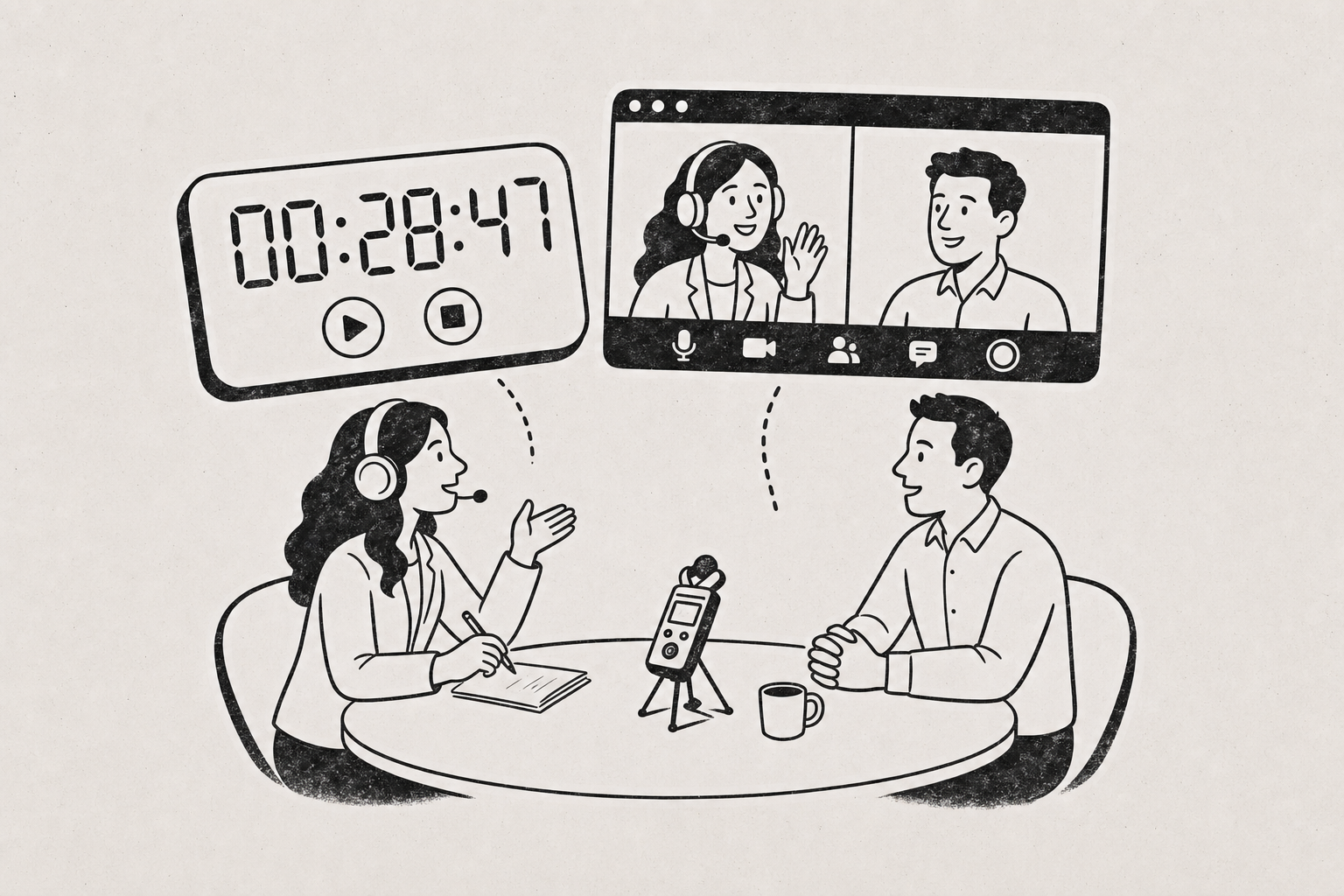
For transcription purposes, a properly configured Zoom call usually beats an in-person interview recorded on one device. The reason is separation: Zoom can record each participant to their own audio file, so speakers never overlap on the same track and speaker labeling becomes nearly trivial. An in-person interview captured on a single phone mic puts both voices, the room echo, and the café espresso machine into one waveform, and the transcription engine has to untangle all of it. That said, Zoom introduces its own failure modes — compression artifacts, dropped packets, and the other person’s cheap laptop mic — which no post-processing can fix. In-person wins on raw voice quality when you use two lavalier mics or a dedicated recorder in a quiet room; it loses badly in any noisy or reverberant space. Phone calls are the weakest of the three because the audio is narrowband by design and you rarely control the far-end microphone. The practical ranking for transcription accuracy: in-person with per-speaker mics in a quiet room, then Zoom with separate audio tracks enabled, then in-person on one device, then phone.
Zoom’s “record a separate audio file for each participant” is the single most important setting
Zoom’s local recording has an option that most people never turn on, and it changes everything about post-interview transcription.
Find it under Settings → Recording → “Record a separate audio file of each participant.” With it enabled, a local recording produces an Audio Record folder containing one M4A per person alongside the combined file.
One track per speaker means the transcription engine hears only one voice per file, which eliminates the crosstalk that causes most misattributed lines. You get clean text for each side even when people talk over each other.
Two caveats worth knowing before you rely on it:
- The setting only applies to local recordings, not cloud recordings on all plan tiers. Check which one you’re using.
- It must be enabled before the meeting starts. You cannot retroactively split a combined recording.
Other Zoom settings worth checking once and forgetting about:
| Setting | Where | Why it matters |
|---|---|---|
| Original sound for musicians | Settings → Audio → Advanced | Disables aggressive noise suppression that can clip quiet speech |
| Suppress background noise: Low | Settings → Audio | Auto mode sometimes gates the start of sentences |
| Automatic recording | Settings → Recording | Removes the “did I press record?” risk |
| Optimize for 3rd-party editor | Settings → Recording | Produces a more predictable MP4 |
Ask the other person to use wired earbuds with an inline mic rather than laptop speakers. Laptop speakers plus laptop mic causes echo cancellation to kick in hard, and echo cancellation is what chops the first syllable off words.
Phone interviews are narrowband audio — expect the accuracy hit
Cellular and most VoIP calls compress voice into a narrow frequency band. High frequencies that distinguish “s” from “f” or “p” from “t” are partly discarded before the audio ever reaches your recorder.
No transcription tool can recover frequency information that the phone network threw away, so a phone interview will always transcribe less accurately than the same conversation over a decent internet connection. Plan accordingly if the content is going into published quotes.
If a phone interview is unavoidable, the options in rough order of quality:
- Move the call to a computer. A Zoom, Meet, or Teams call over WiFi is wideband audio. This is by far the biggest single improvement available.
- Use a call recording app that captures both sides rather than holding a second phone near the speaker.
- Speakerphone into a separate recorder as a last resort. This adds room reverb on top of narrowband compression — the worst combination.
- Have the interviewee record their own side locally on their phone’s voice memo app and send you the file. You then transcribe two clean files instead of one poor one. This “double-ender” approach is standard in podcasting for exactly this reason.
If you do end up with two files, Pro accounts can batch upload up to 10 audio files at once, which makes the double-ender workflow less tedious than uploading one at a time.
In-person interviews win on voice quality and lose on room acoustics
An in-person recording has no network compression, no packet loss, and no echo cancellation. The microphone hears the actual human voice. That’s a real advantage — but it’s contingent entirely on the room.
The variable that determines whether in-person recording beats Zoom is not the microphone; it’s the room’s reverberation and background noise. A quiet office with soft furnishings will produce a transcription source as clean as any setup on this list. A restaurant will produce the worst.
Practical setup, in order of impact:
- Pick the room before you pick the gear. Carpet, curtains, a couch, a closed door. Avoid glass-walled conference rooms and anything with an HVAC vent overhead.
- Get the mic within 8–12 inches of each mouth. Distance is the single biggest factor in signal-to-noise ratio. A $30 lav clipped to a collar outperforms a $300 mic sitting across the table.
- Record two tracks if you can. Two lavaliers into a small recorder, or two phones each capturing one person, gives you the same per-speaker separation that Zoom’s split-track recording provides.
- Record a second backup on your phone. Phones do not run out of batteries as reliably as recorders do, and a mediocre backup beats a missing file.
- Capture 10 seconds of room tone before you begin — silence with the recorder running. It’s useful for editing and it confirms levels are live.
For a deeper list of pre-record adjustments, see 9 Ways to Improve Transcription Accuracy Before You Record and How to Reduce Background Noise Recording.
Head-to-head: which setup produces the cleanest transcript
| Setup | Speaker separation | Voice fidelity | Main failure mode | Transcription accuracy |
|---|---|---|---|---|
| In-person, two lav mics, quiet room | Excellent (two tracks) | Excellent | Wrong room chosen | Best |
| Zoom, local recording, separate tracks | Excellent (per participant) | Good | Bad far-end mic, dropouts | Very good |
| Zoom, single combined track | Fair | Good | Crosstalk on overlaps | Good |
| In-person, one phone on the table | Poor | Fair to poor | Reverb, background noise | Fair |
| Phone call, speakerphone into recorder | Poor | Poor | Narrowband + reverb | Worst |
The pattern across all five rows: separation matters more than fidelity. A slightly compressed voice on its own track transcribes better than a pristine voice tangled up with someone else’s.
Note also that Zoom gives you something in-person doesn’t: a video file. If you plan to cut clips or publish subtitles later, the MP4 is worth keeping — creating SRT subtitles from that video is straightforward once you have a transcript.
Consent rules vary — check before you hit record
Recording-consent law differs by jurisdiction. Some places require only one party to consent, others require every participant to agree, and rules for phone calls sometimes differ from rules for in-person conversations. If your interviewee is in a different state or country than you are, more than one set of rules may apply.
Ask for permission on the recording itself — state the date, who’s present, and get a verbal yes. It takes fifteen seconds, it documents consent inside the file, and it doubles as a useful marker at the top of the transcript. If you’re publishing or doing research under an ethics board, follow whatever your institution or publisher requires on top of the legal minimum.
What to do with the files afterward
Whatever setup you used, the post-interview steps are similar.
- Copy files off the device immediately. Two locations. Recorders get formatted, phones get full.
- Name files consistently — date, interviewee, part number.
2026-09-21-mchen-part1.wavbeatsZOOM0043.WAV. - Upload for transcription. Listently accepts MP3, WAV, M4A, FLAC, OGG, MP4, MOV, and MKV, so Zoom’s M4A and MP4 outputs and a recorder’s WAV all go in without conversion.
- Rename the speakers. Automatic speaker detection gives you Speaker 1 and Speaker 2; renaming them to real names carries through to the AI summary too.
- Load names and jargon into custom vocabulary before your next interview in the same subject area. Saved terms get spelled correctly automatically on future transcripts — details in How to Set Up Custom Vocabulary.
- Skim the transcript against the audio at the points that matter. Quotes you intend to publish should be verified by ear regardless of setup.
If you recorded separate tracks per speaker, transcribe them separately and merge afterward. You lose automatic interleaving but gain near-perfect attribution — worth it for legal, research, or anything quote-heavy.
Common questions
Does Zoom’s built-in transcription remove the need for a separate tool? It gives you a rough live transcript, which is useful for searching a meeting. It is not the same as a cleaned-up, speaker-labeled transcript you’d quote from, and it doesn’t help at all with the in-person or phone recordings sitting on your recorder.
Should I record video or audio-only for a Zoom interview? Record video if there’s any chance you’ll want clips, screenshots, or subtitles later. Audio-only files are smaller and transcribe identically. You can always throw video away; you can’t add it back.
Is a USB mic enough for in-person, or do I need a field recorder? A USB mic into a laptop is fine for a single-person recording or a quiet two-person interview with the mic between you. Field recorders matter when you need two separate tracks or you’re recording somewhere without a table and power.
What about hybrid — one person in the room, one on Zoom? Treat it as two recordings. Let Zoom capture the remote participant and record the in-room person locally on a lav or phone. Recording the room’s speakers through a laptop mic mixes both voices into a reverberant single track, which is the worst-case setup.
Once you’ve got the files, upload them to Listently and get a speaker-labeled transcript free — or see the interviews use case for the full workflow.