August 26, 2026 · By The Listently Team
How to Turn a Podcast Episode Into Show Notes
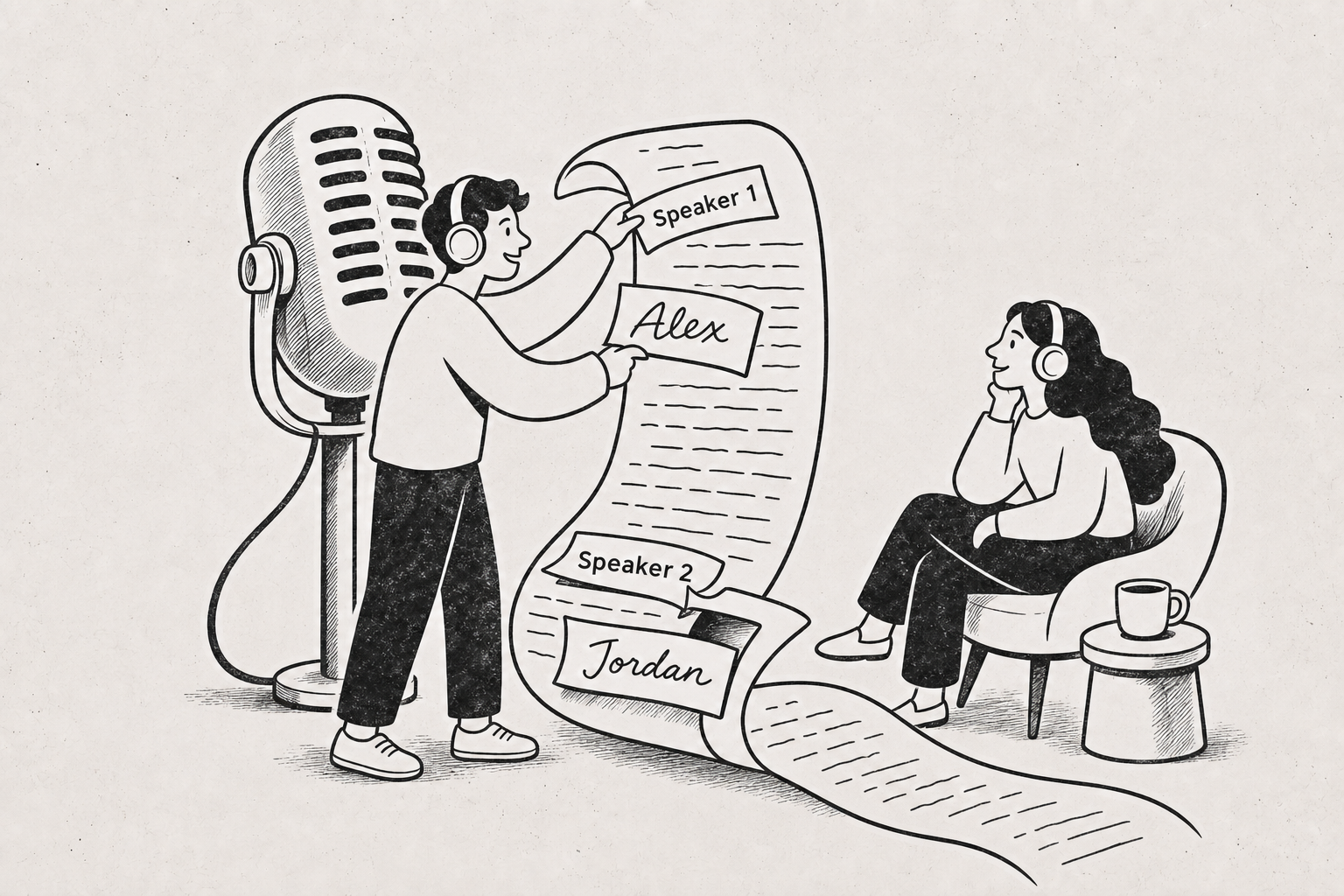
To turn a podcast episode into show notes, work from the transcript rather than your memory of the conversation. Upload the finished audio or video file to a transcription tool, wait for the speaker-labeled transcript, then rename the generic speaker labels (“Speaker 1”, “Speaker 2”) to the actual host and guest names — this matters because an AI summary built on top of that transcript will attribute quotes and claims to whoever the labels say. Once names are correct, generate the summary and use it as the skeleton for your show notes: a two-sentence episode description, three to six topic bullets, and the guest’s links. Skim the transcript for topic shifts, then find those moments in your audio editor to turn them into chapter markers. Then export in the formats each destination needs: Word if you want to edit the notes before publishing, PDF for a downloadable transcript, and SRT or VTT for the YouTube or social video cut. The whole loop takes about 15–20 minutes per episode once you’ve done it twice, and it produces a searchable episode page as a byproduct — which is the part most podcasters skip and later regret.
Step 1: Upload the final mix, not the raw multitrack
Transcribe the file you’re actually publishing. If you transcribe a rough cut, every chapter mark you place will be off by however much you trimmed later.
Common formats all work — MP3, WAV, M4A, FLAC, OGG for audio, and MP4, MOV, MKV if you record video. Upload the same file you send to your host, so the transcript matches the published episode word for word.
If your episode is long, check file limits before you start. Listently’s free plan handles 3 transcriptions a day at up to 30 minutes per file, which covers short-format shows; longer interview episodes need Pro, which has no file-length limit and 5GB uploads.
Step 2: Rename the speakers before you generate the summary
Speaker detection is automatic, but it doesn’t know who anyone is. You’ll get generic labels, and the numbering doesn’t necessarily match your mental cast list — “Speaker 1” may well be your guest if you opened with a clip of them.
Read the first minute of the transcript, confirm which label belongs to whom, and rename them. In Listently, renaming a speaker applies everywhere, including the AI summary — so “Speaker 2 argued that indie shows should skip dynamic ad insertion” becomes “Priya argued that indie shows should skip dynamic ad insertion.”
Do the renaming first. A summary generated against generic labels is nearly useless for show notes, because attribution is the whole point of a guest interview.
On multi-guest episodes, spot-check the places where the conversation hands off from one person to another before you generate the summary. The transcript and speaker names stay editable after transcription completes, so anything that looks off can be corrected — and the corrected names carry through to the summary.
If you record panels or roundtables regularly, the recording side matters too: separate mics, a quick round of name introductions at the top, and asking people not to talk over each other all make the transcript easier to read and easier to label.
Step 3: Use the AI summary as your show notes draft, not your final copy
The AI summary is generated from the actual transcript text and attributes points to specific speakers. It’s instructed not to invent action items or conclusions that weren’t in the conversation, which is exactly what you want for show notes — a summary that hallucinates a “key takeaway” your guest never said is a correction waiting to happen.
Treat it as a structured draft. Here’s what maps to what:
| Show notes element | Where it comes from |
|---|---|
| Episode description (2–3 sentences) | Opening lines of the AI summary, tightened |
| Topic bullets | Summary’s main points, one bullet each |
| Pull quote for social | Verbatim line from the transcript, not the summary |
| Chapter markers | Topic shifts in the transcript, timed in your editor |
| Guest bio and links | Your own notes — not in the audio |
Always pull quotes from the transcript itself, never from the summary. A summary paraphrases; a pull quote you attribute to a guest in quotation marks needs to be their literal words.
Step 4: Build chapter markers by scanning for topic shifts
Chapters are the highest-value, lowest-effort piece of this workflow. Listeners use them to skip around, and platforms that display them give you extra surface area on the episode page.
The manual scan is fast:
- Skim the transcript for the host asking a new question or saying something like “so let’s talk about—”. Those are your boundaries.
- Find each of those lines in your audio editor or player and note the time. Aim for 5–9 chapters on a 45-minute episode; more than that and they stop being useful.
- Name each chapter with the actual subject, not a teaser. “Why she left agency work” beats “A surprising turn.”
- Keep the first chapter short — a 30–60 second intro chapter lets people skip your cold open.
Chapter titles written from transcript language tend to match how people actually search, because they use the words your guest used rather than the words you’d invent afterward.
Step 5: Export Word for editing, PDF for download, SRT for the video cut
Different destinations want different files. Export formats available are Word, PDF, and SRT/VTT subtitles, which covers the three jobs cleanly:
- Word (.docx) — the working copy. Paste it into your CMS draft or edit it down. Use this when you want to lightly clean up filler words before publishing a “readable” version of the conversation.
- PDF — the downloadable transcript you link from the episode page. Good for accessibility, good for guests who want to share it, and it looks finished without any styling work.
- SRT / VTT — subtitles for the video cut. Upload alongside your YouTube video or attach to clips for Reels, Shorts, and TikTok, where most viewing happens with sound off.
One workflow note on subtitles: if you cut the video differently from the audio episode, the subtitle timings won’t match. Transcribe the video file separately in that case rather than trying to shift timings by hand.
Step 6: Publish the transcript on the episode page for search
An episode page with a full transcript is a page with 6,000–9,000 words of on-topic text on it. An episode page with just a description is a page with 60 words. Search engines and AI answer engines can only surface what they can read, and they cannot read your MP3.
Practical setup:
- Put the show notes, chapters, and guest links at the top.
- Put the full transcript below, in a collapsible section or on its own linked page.
- Keep speaker names as headings or bold labels so the structure survives.
- Link the PDF as a download for people who want the whole thing offline.
The transcript is what makes an episode findable months later by someone searching for a phrase your guest said once. That’s the compounding part.
A note on recording and consent
If you’re recording a guest — remotely or in person — get their agreement on the record before you start, and tell them a transcript will be published if you plan to publish one. Recording-consent rules vary by jurisdiction, including whether one party or all parties must consent, so check what applies where you and your guest are located rather than assuming a single rule.
Worth telling guests, too: with Listently, audio and transcripts are never used to train any AI model and never shared with third parties, and uploaded audio is deleted immediately after processing. That’s usually the answer a guest is looking for when they ask where their recording ends up.
Common questions
How long does transcription take? Minutes — you upload the file and get back a speaker-labeled transcript with an AI summary. The time cost in this workflow is your editing pass, not the transcription. Note that the free plan caps files at 30 minutes, so full-length interview episodes need Pro, which has no file-length limit.
Should I clean up filler words in the published transcript? For a readable web transcript, light cleanup helps: drop the “um”s and false starts, keep the sentence structure. For subtitles and for anything you quote directly, leave it verbatim. Listently Pro’s “Hide filler words” toggle does the cleanup automatically, on-screen and in exports, so you don’t have to edit them out by hand.
Can I transcribe episodes recorded in another language? Yes — over 100 languages are supported, which also means you can transcribe a non-English episode and publish a transcript for it rather than leaving that episode invisible to search.
What if the speaker labels are wrong in the middle of the episode? Fix them. The transcript and speaker names are editable after transcription completes, so you can correct a mislabeled stretch and the corrected names carry through to the summary.
If you want to run one episode through this and see what the show notes look like, start with a free transcription.