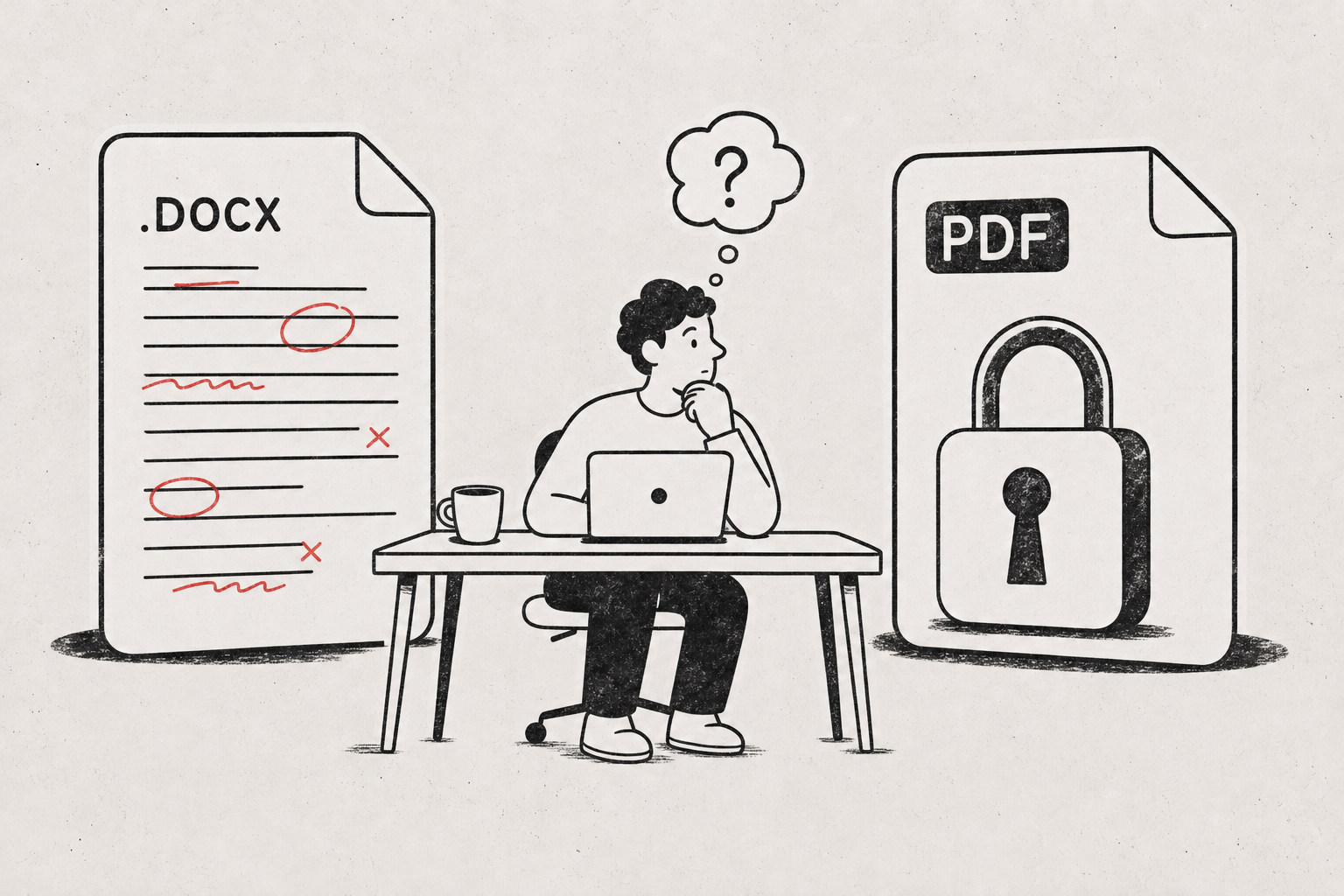
Pick Word if the transcript is still a working document, and PDF if it’s a finished one. Word (.docx) is editable, so it’s the right choice when you still need to correct names, trim sections, add notes, or paste quotes into a report — anyone with Word, Google Docs, or Pages can open and change it. PDF locks layout and text in place, renders identically on every device, and is what you want when a transcript goes to a client, gets attached to a case file, is signed off by a participant, or needs to sit in an archive unchanged for years. The practical workflow for most people is both, in order: export to Word, make your corrections there (or better, fix them in the transcript editor before exporting), then export the final version to PDF for distribution and storage. The one thing to avoid is sending a Word file to someone who shouldn’t be editing it, or archiving a PDF of a transcript you know still contains errors. If you need timed captions rather than a document, neither format applies — that’s SRT or VTT.
Word (.docx) is the right export when the transcript still needs work
A Word export gives you a text document with the speaker labels and paragraph structure intact, and every character of it is editable. That matters more than it sounds, because almost no transcript is final the moment it finishes processing.
Typical reasons you’ll want Word:
- Correcting errors. Technical terms, surnames, and product names are where accuracy drops first. If you didn’t catch them before export, Word is where you fix them.
- Cutting sections. Off-topic small talk at the start, a ten-minute tangent in the middle, a section the participant asked you to remove.
- Reformatting for a report. Research write-ups, HR files, and legal summaries often require a specific house template. Word drops straight into that.
- Collaborating. Track Changes and comments in Word or Google Docs let a second reviewer work on the same file.
Export to Word any time the transcript is an input to something else rather than the final deliverable. If it’s going to be quoted, coded, summarized, or edited by a colleague, you want a format that doesn’t fight you.
One caveat: .docx renders slightly differently across Word, Google Docs, LibreOffice, and Pages. Fonts substitute, line breaks shift, page counts change. For a plain transcript this rarely matters, but it means a Word file is not a reliable record of “what the document looked like.”
PDF is the right export when the transcript needs to be final
PDF is a fixed-layout format. What you see is what the recipient sees, on any device, in any PDF reader, five years from now. Nobody accidentally edits a line while scrolling, and nobody’s version drifts from yours.
Use PDF when:
- The transcript is a deliverable. Client-facing interview transcripts, research appendices, board meeting records.
- Someone signs off on it. If a participant reviews and approves their own transcript, PDF makes “the approved version” an unambiguous thing.
- It goes into a file or archive. Case files, HR records, compliance storage. PDF is the default expectation in most of these contexts, and page numbers stay stable for citation.
- You’re citing specific pages. A quote on page 7 is on page 7 for everyone.
PDF doesn’t make a transcript legally tamper-proof on its own — it makes casual editing inconvenient and layout consistent, which is usually the actual requirement. If you genuinely need tamper-evidence, that’s a signing or document-management layer on top of the PDF, not something the export format provides.
The obvious downside: once it’s a PDF, fixing a typo means going back to the source and re-exporting. That’s a feature when the document is final and a nuisance when it isn’t.
Side-by-side: Word vs PDF for transcripts
| Consideration | Word (.docx) | |
|---|---|---|
| Editable by recipient | Yes, fully | Not without extra tools |
| Layout consistency across devices | Varies | Identical everywhere |
| Good for correcting names and errors | Yes | No |
| Good for sign-off / approval | No | Yes |
| Long-term archiving | Workable, but format drifts | Standard choice |
| Copy-paste quotes out | Clean | Usually fine, occasional spacing artifacts |
| Page numbers stable for citation | No | Yes |
| Search inside the file | Yes | Yes (text-based PDFs) |
The table reduces to one rule: Word for the version that changes, PDF for the version that doesn’t.
The workflow most people should use: fix first, Word second, PDF last
The common mistake is exporting too early and then maintaining corrections in two places. Here’s the order that avoids that.
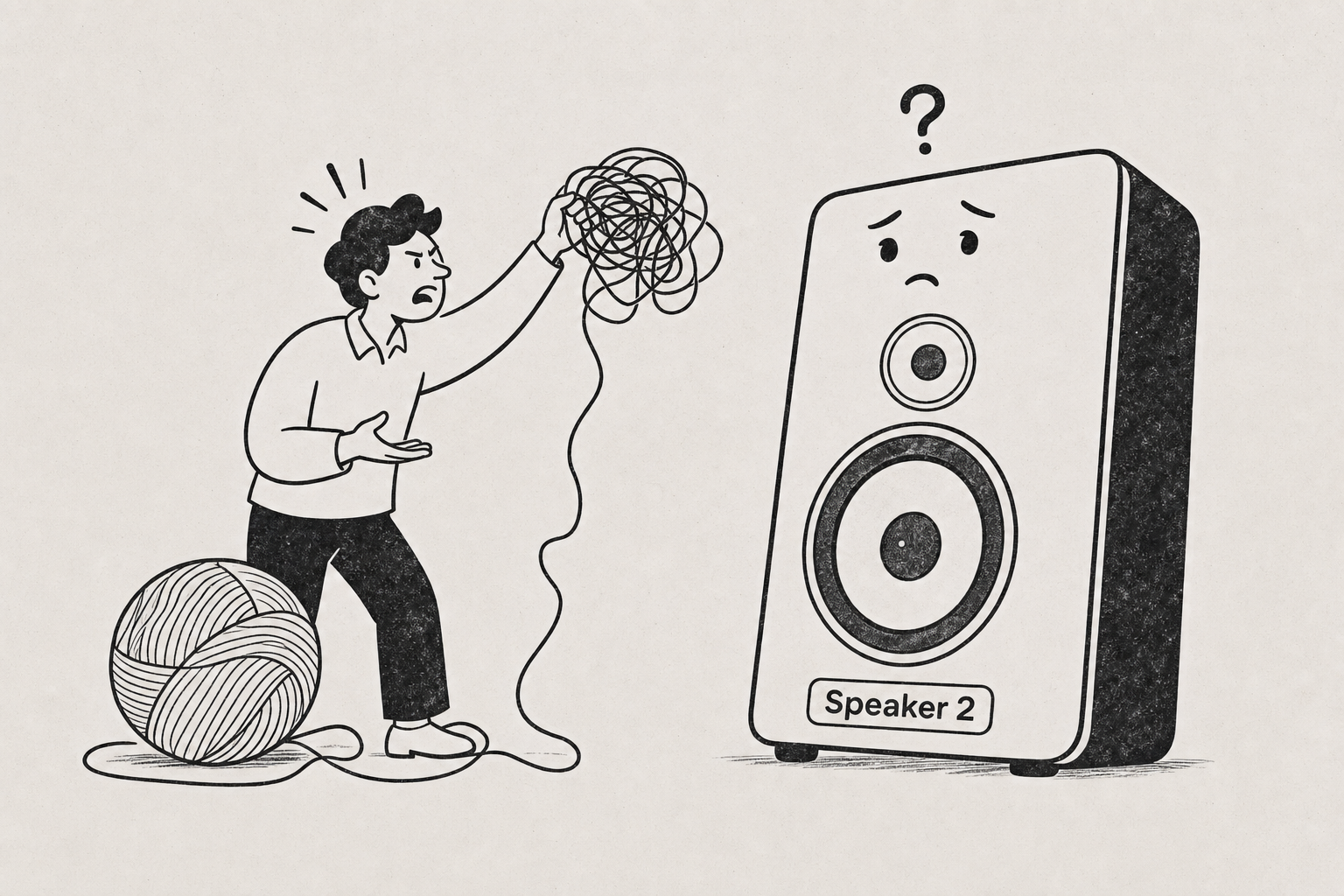
- Fix what you can in the transcript editor first. Speaker labels are the big one — rename “Speaker 1” to the actual person before you export, so the name is right everywhere. In Listently, renaming a speaker applies throughout the transcript and the AI summary, so you don’t have to find-and-replace afterward.
- Clean up recurring term errors at the source. If the same name or acronym is wrong on every page, fixing it by hand in Word is wasted work — set up custom vocabulary so future transcripts spell it correctly from the start.
- Decide on filler words before exporting. Listently’s hide-filler-words toggle removes um/uh from the on-screen transcript and from exports without changing the underlying transcript. Choose the state you want, then export — see how to remove filler words from a transcript for when a verbatim version is the better call.
- Export to Word if substantive editing remains. Cuts, restructuring, pasting into a report template.
- Export to PDF for the final, distributed, or filed version. If you edited in Word, produce the PDF from that Word file so the two match.
Doing steps 1–3 before any export is what keeps you from maintaining the same transcript in three places.
Verbatim records: export the uncleaned version to PDF too
If the transcript is a record of what was actually said — a legal client call, an HR exit interview, a research interview you’ll be coding — be deliberate about which version you archive.
A transcript with filler words hidden and a tangent cut is a readable summary document. It is not a verbatim record. For contexts where the verbatim version matters, archive the unmodified transcript as PDF and treat any cleaned or edited version as a separate working file with a different filename.
Keep the archived PDF and the working Word file visibly distinct — different names, different folders — so nobody later mistakes the edited version for the record.
Note that in many of these contexts, how the recording was made matters as much as how it’s filed. Recording-consent rules vary by jurisdiction — one-party versus all-party consent, different rules for workplace and client calls — so confirm what applies to you before recording, not after.
Neither format works for subtitles — that’s SRT or VTT
Word and PDF are document formats. They carry text and layout, not timing.
If you need captions that sync to video, or timestamps a video editor can read, export SRT or VTT instead. Listently supports SRT/VTT alongside Word and PDF, and the step-by-step SRT guide covers the details.
A rough test: if the transcript will be read, use Word or PDF. If it will be watched alongside video, use SRT or VTT.
A quick decision list by use case
- Interview you’re writing an article from → Word. You’re pulling quotes and cutting.
- Research transcript going into coding software → Word, or copy the text out directly.
- Client-facing transcript as a deliverable → PDF.
- Participant reviewing and approving their own words → PDF for review, then re-export after any requested changes.
- HR or legal file → PDF, archived unedited.
- Draft you’re circulating to two colleagues for comment → Word.
- Meeting record attached to project documentation → PDF.
- Podcast episode transcript for your site → Word, then paste into your CMS.
When you genuinely can’t decide, export both. It costs nothing, and the Word file gives you a corrections path if the PDF turns out to need a change.
Common questions
Can I convert a PDF transcript back to Word? Technically yes, with a converter, but the formatting usually degrades and speaker labels can break across line wraps. It’s faster and cleaner to re-export from the original transcript.
Which format is better for long transcripts? PDF, for stable page numbers and consistent rendering — a 90-minute interview can run 30+ pages, and you want “page 18” to mean the same thing for everyone. Edit in Word first if it needs editing, then produce the PDF.
Does exporting to PDF change the transcript text? No. Both exports draw from the same transcript. The only difference in content comes from options you’ve set, such as hiding filler words, which affects the exported text in both formats equally.
Should I export before or after renaming speakers? After. Renaming in the app updates the transcript and the AI summary together — see what teams get wrong about AI meeting summaries for why attribution matters in the summary specifically.
Listently exports to Word, PDF, and SRT/VTT from the same transcript, so you can produce an editable draft and a filed final without re-doing any work. Try it free.